

The page Marketing > Market Leaders shows two things: the matrices of the directories where you already are a market leader, and above them a table that is far more useful. It is called "Your chance to be listed as a market leader" and tells you, for each directory, exactly which criterion you are still missing.
How the matrix itself is calculated is explained in How does the Market Leaders Matrix work?. This article explains the dashboard page.
The five requirements
To enter a market leaders matrix at all, your profile has to meet all five of these points per directory:
The service or focus area of the category is assigned to your profile with at least 10 percent.
Your website is linked in your profile.
You have collected or integrated at least 6 reviews.
There is at least one matching case study for that category.
Your Feedbax score places you in the top 15 of the category.
The first four points are gatekeepers. Only when they are met does point 5 come into play at all. A very good score is worthless if the case study is missing.
That is almost the same list as for the top company badge, only with top 15 instead of top 20. See How can I unlock the top company badges for my company?
The potentials table
The hint explains the colour system: "The following table shows directories in which your profile has the potential to be listed as a market leader. However, at least one criterion is currently not met. Criteria highlighted in red prevent classification as a market leader, while criteria highlighted in orange do not represent a block, but can be optimized."
Remember the two colours:
Red = blocker. As long as the cell is red, you are excluded in that directory.
Orange = room to improve. Not an exclusion, but a lever on your score.
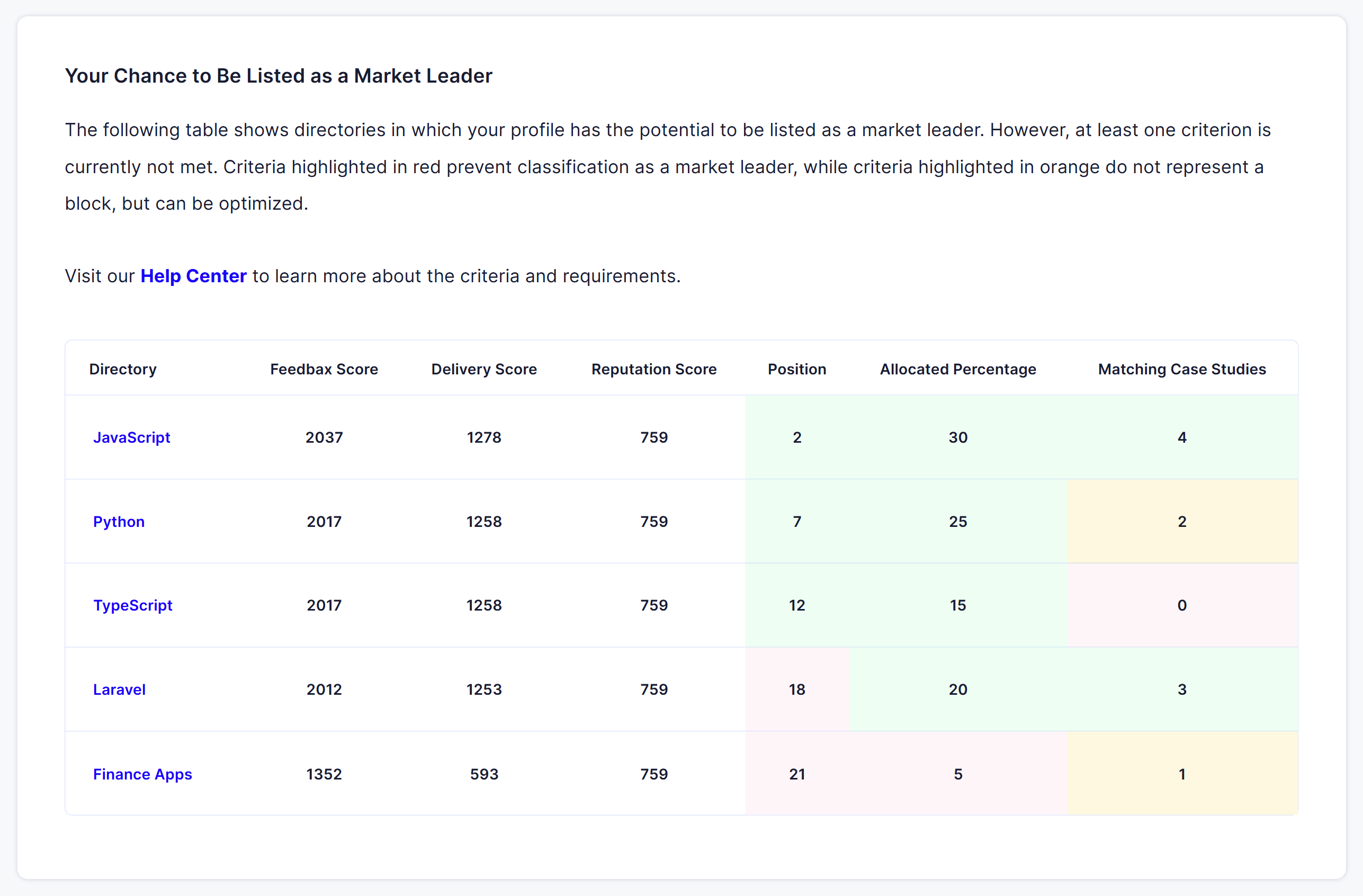
The columns
The table shows one directory per row. Some columns only appear when something is missing on your side.
Always present:
Directory. The name, linked to the public directory.
Feedbax Score, Delivery Score, Reputation Score. Your three values for exactly this directory.
Position. Your current placement. Red from position 16, green below that. This is criterion 5.
Allocated percentage. The share with which you weighted the service or focus area of this directory. Red below 10, green from 10. This is criterion 1, set under Company Profile > Expertise.
Matching case studies. The number of case studies that fit this directory. Red at 0, orange at 1 or 2, green from 3. This is criterion 4.
Only when something is missing:
Website. This column only appears when no website is saved in your profile. It then shows red and reads "Missing". Enter it under Company Profile > Contact for Leads.
Ratings total. This column only appears when you have fewer than 6 reviews. It is then red.
Integrated Google reviews and the corresponding columns for Trustpilot, ProvenExpert, Clutch, DesignRush and GoodFirms. They only appear when your profile has integrated fewer reviews from that source than exist there. The value reads "integrated / available", for example "12 / 40", and the cell is orange.
The columns for Trustpilot and ProvenExpert only appear from Business, those for Clutch, DesignRush and GoodFirms only from Premium, because those sources are tied to a subscription.
How to work through the table
Go from left to right and deal with red cells first:
Red under "Allocated percentage". The cheapest fix of all. Open Company Profile > Expertise and raise the service in question above 10 percent. Five minutes.
Red under "Website". One field under Company Profile > Contact for Leads. It blocks not only here but also the top company badge, profile approval and every application.
Red under "Ratings total". You need at least six. The fastest route there is phone collection, see How does the collection of reviews by telephone work?
Red under "Matching case studies". Either the case study is missing or it is assigned to the wrong service. Check the assignment first, that is often the cause.
Orange under "Matching case studies" (1 or 2). Not a blocker, but the third matching case study turns the cell green and strengthens your delivery score.
Orange in the review columns. Every review not yet integrated is reputation score you are leaving unused. One click on "Update reviews" in the relevant source fetches them. See Integrating reviews from other portals.
Red under "Position" cannot be fixed directly. Position is the result of all the other points. Work through the red and orange cells and the position moves with them.
The matrices below
Below the potentials table sit the directories where you made it. Per directory you see:
the matrix with the four fields Leaders, Challengers, Visionaries and Niche Players, spanned across the reputation and delivery axes,
and next to it the table of top providers in that category with rank, name and rating.
A matrix only appears when there are at least two qualified market leaders in that directory. With only one the display would be pointless.
When the page is empty
If you meet the requirements nowhere and have no potential either, the page shows the box "Criteria for the Market Leaders Matrix" with exactly the list of five requirements above. That list is then your work plan.
Frequently asked questions
Why is a directory we are listed in not in the table?
The potentials table only shows directories where you have a score and are not yet in the top 15. If you are already in the top 15 and meet everything else, you appear further down as a matrix instead. Directories with subcategories are not listed here either.
What is the difference between "Position" and "Rank" in the matrix table?
Position in the potentials table is your placement in the whole directory listing. Rank in the matrix table below is your placement among the qualified market leaders of that directory, so within the top 15.
I connected a review source but the orange column stays.
The column compares integrated with available reviews. Connecting alone is not enough, the reviews also have to be fetched. Open the source's page and click "Update reviews". For Clutch, DesignRush, GoodFirms and G2 they are loaded in steps of ten, so you need several clicks there.
Why do I not see the Clutch column?
Because the Clutch integration is only available from Premium. Without the matching subscription the table does not show the column at all.
How often does the table update?
It follows your Feedbax score, which is recalculated at fixed intervals. See How often is my Feedbax score updated?