

In the “Plan” section you see which subscription you have and manage it. If you don’t have a paid subscription yet, you compare the plans here and book directly in the dashboard. If a paid subscription is already running, the page shows your subscription instead, with payment method, billing details, term and the latest invoices.
At a glance
- Where: Area “Plan & account”, entry “Plan”. The entry is at the very top of the area. The upgrade note in the sidebar leads here too.
- Two faces: Without a running paid subscription, the page shows the price cards for booking. With a running subscription (and a customer at our payment provider Stripe), it shows the management view. The price cards then sit collapsed under “Compare other plans”.
- Changes happen at Stripe: You handle the payment method, billing details, switching and cancelling in the Stripe customer portal. The buttons on this page open it at the right place.
- Billing interval: Business, Premium, Enterprise and tender access are billed “Yearly” or “Quarterly”, a LeadWin subscription “Monthly” or “Yearly”. Paying annually is cheaper. The page shows the biggest benefit as “save up to N%”.
- Prices: All prices are net prices. VAT is added only for a billing address in Germany.
- Administrators: A Feedbax administrator sees your subscription read only. They can’t book or switch anything.
With a running subscription: managing your subscription
At the top it says: “Here you manage your subscription: payment method, billing details, term and invoices. You make changes in the Stripe customer portal.” The page reads the data once, directly from Stripe, when you open it. While it loads, grey placeholders hold the space.
The “Your Plan” card
There is one card for each running subscription. That is usually one for Business, Premium or Enterprise. Next to tender access, a second one can stand for a standalone LeadWin subscription (for example “LeadWin Pro”). The card shows:
- the name of the subscription (Business, Premium, Enterprise, tender access or LeadWin plus tier),
- a status tag: “Active” (green), “Cancelled” (yellow, the subscription ends), “Payment due” (yellow), “Unpaid” (red) or “Paused” (grey),
- the billing interval and the net price, for example “Yearly · €1,188 per year”, “Quarterly · … every 3 months” or, for LeadWin, “Monthly · … per month”. In the German interface “plus VAT” follows the price, in the other languages it doesn’t,
- the term: “Renews on …”, “Ends on …” (after cancellation) or “Current period until …”,
- small check tags for what is included in the subscription, for example “LeadWin Pro included” and “Tender Access included”,
- the button “Manage subscription”.
If Stripe can’t answer, the card says “Price and status from Stripe are not available right now.” The page then guesses nothing and shows only what it knows for sure: the plan and the term from your dashboard.
The three tiles
| Tile | What it shows | Button |
|---|---|---|
| “Payment method” | The card with brand and last four digits (“Visa”, below it “•••• 4242”) or the “SEPA direct debit” (below it “IBAN •••• 3000”). If neither exists, it says “Not on file”. If Stripe can’t answer, it says “Not available right now”. | “Change” opens the customer portal right at the form for the payment method. |
| “Billing details” | Company name and city of the billing address. | “Change” opens the customer portal. |
| “Term” | The billing interval and the date of the next renewal or of the end. | “Switch or cancel” opens the customer portal. Switching and cancelling sit next to each other there. |
If you have two subscriptions (for example tender access and your own LeadWin subscription), the tiles list both, each line with the name of the subscription in front.
Invoices
The “Invoices” block lists your five newest invoices, newest first, across all your subscriptions. A row shows the description or invoice number, date, amount and status: “Paid”, “Open”, “Unpaid” or “Void”. With “PDF” you download the invoice. “All in the customer portal” opens the complete list. If there are none, it says “No invoices yet.” If the invoices couldn’t be read completely, it says “The invoices couldn’t be loaded completely right now. You can find all of them in the customer portal.”
Compare other plans
Below the invoices is a collapsed row “Compare other plans”. One click opens the price cards (see the next section). This keeps an upgrade one click away without putting it in the foreground.
Without a running subscription: comparing and booking plans
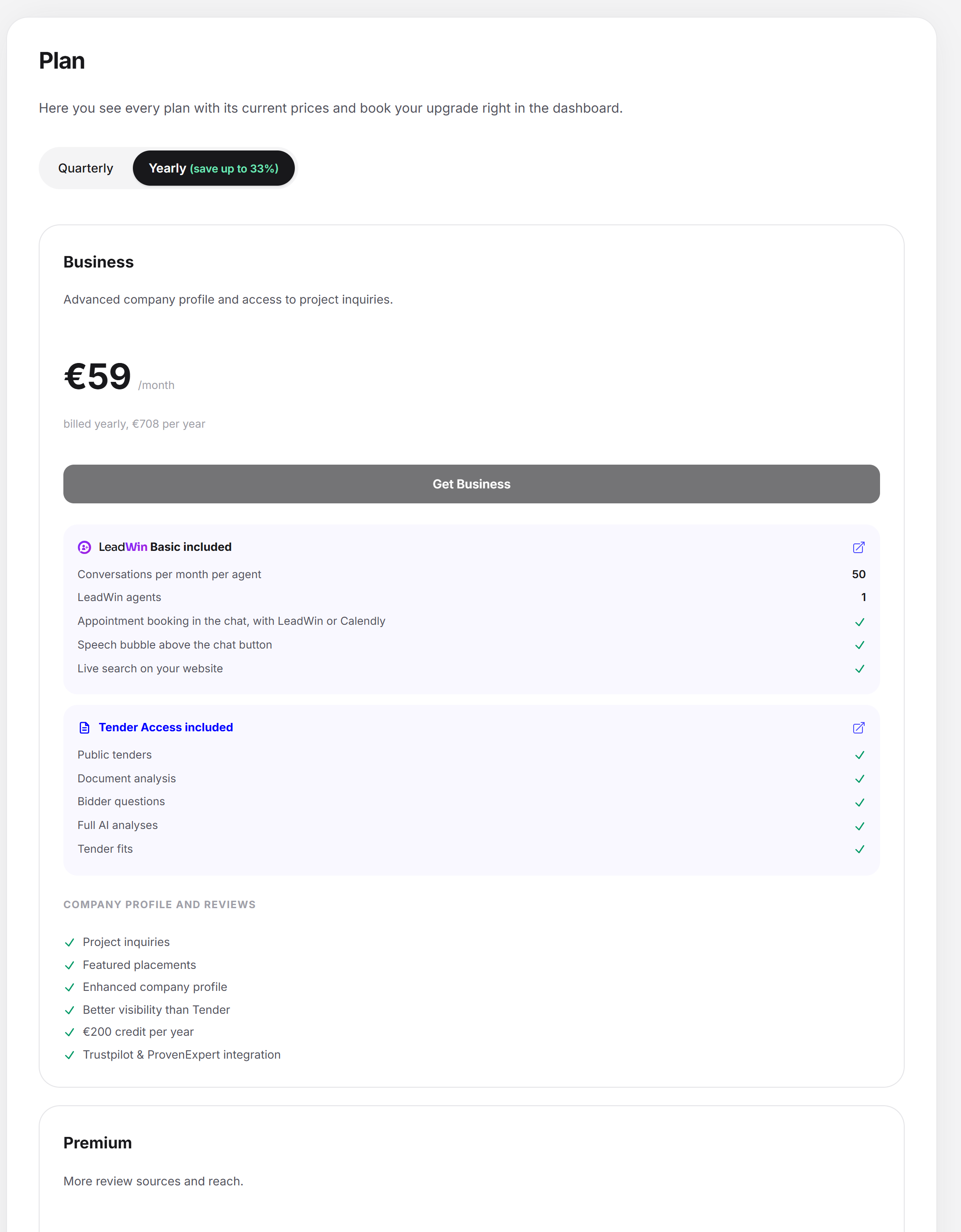
At the top it says: “Here you see all plans with their current prices and book your upgrade directly in the dashboard.” The cards are the same as on the Feedbax pricing page. The prices come live from the catalog.
- Above the cards, choose the billing interval: “Yearly” (preselected, with the tag “save up to N%”) or “Quarterly”. Both intervals apply to all three cards together.
- Compare the three cards “Business”, “Premium” and “Enterprise”. In a wide window they sit side by side, in a narrow one one below the other. Each card says in one sentence what the subscription is for. Which features each tier includes is listed in the comparison Which subscriptions does Feedbax offer?.
- Below that is the “Tender Access” card: access to public tenders only, with its own billing interval. It includes nothing from Business. See Tender access: book, manage, cancel.
- Click the card’s booking button: “Get Business”, “Get Premium”, “Get Enterprise” or “Get access”. It opens the dashboard’s order dialog.
- Complete the booking in the dialog. It confirms the booking and leads to the tenders with “Discover tenders”. If you open the section again afterwards, it shows the management view.
If you already have a subscription, the current card carries the tag “Your Plan”. There and on the other cards, “Manage subscription” appears instead of the booking button, because a switch starts in the customer portal. Only from tender access do you book Business, Premium or Enterprise directly. If you switch from tender access to Business, you read: “Your tender access ends with the booking. We refund the unused remainder pro rata.”
At the end of the block, the link “See all prices and the full comparison” leads to the pricing page.
Managing your subscription without a running one
If you booked a subscription earlier and have a customer at Stripe, “Manage subscription” appears at the top right next to the heading. It opens the customer portal, for example for old invoices or a new payment method. If you have never booked, you don’t see the button.
If the prices can’t be reached, it says “Price currently unavailable”. If the customer portal can’t be opened, the message “The subscription management page couldn't be opened. Please try again later.” appears. You stay on the page.
The Stripe customer portal
You handle all changes in the customer portal of Stripe, our payment provider. A button on the page opens it in the same tab, at the task named on the button. At the top of the portal, the back link leads to this page again. Stripe reports your change to Feedbax, so a switch takes effect without anything else from you. Payment data is stored at Stripe. Feedbax doesn’t store card numbers. More notes on the portal: Managing or cancelling your subscription in the customer portal.
Cancelling: On the page, it is “Switch or cancel” in the “Term” tile. After a cancellation, the card changes: the tag reads “Cancelled”, and the term names the end date (“Ends on …”). The subscription keeps running until that date.
Billing interval: On the price cards of Business, Premium, Enterprise and tender access, annual and quarterly are available, for a LeadWin subscription monthly and annual. You choose the billing interval when you book.
What your subscription includes
| Subscription | Bonus on top-ups | Yearly credit | Seats in the dashboard |
|---|---|---|---|
| Business | 20% | €200 | 1 |
| Premium | 60% | €300 | 3 |
| Enterprise | 100% | €400 and €50 a month for featured placement | 3 |
The yearly credit is booked when you sign up and with each paid period, pro rata to the length of the period (a quarter with quarterly payment). You can read more in the Credits section. You manage the seat in the team in the Account section. What your subscription includes is shown by the “Your Plan” card as tags such as “LeadWin Pro included” and “Tender Access included”.
View for administrators
A Feedbax administrator who opens your dashboard sees the note “Admin view: you see the plan and the prices as this provider sees them. Booking and switching are not possible here; “Manage subscription” opens the provider’s Stripe customer portal.” A booking would otherwise run for the administrator’s account.
Feedbax score
The subscription doesn’t affect the Feedbax score directly. But it determines what counts toward the score. Which review sources count depends on the tier. In the default sort order of the directories, verified providers come first, then the subscription tier decides, and only after that the score. Details: Ranking.
Frequently asked questions
How do I cancel my subscription?
In the “Term” tile, click “Switch or cancel” and cancel in the customer portal. The subscription keeps running until the end date shown.
Can I pay monthly?
Business, Premium, Enterprise and tender access are billed annually or quarterly. They don’t offer a monthly billing interval. Only a LeadWin subscription is also available monthly. Paying annually is cheaper.
Where do I change my payment method or billing address?
In the “Payment method” or “Billing details” tile, click “Change”. Both go through the customer portal.
Where do I find my invoices?
The five newest are on this page, with a PDF link. You find all the others via “All in the customer portal”.
Why does the card say “Payment due” or “Unpaid”?
Stripe reports the last payment as open or unpaid. Check the payment method in the “Payment method” tile.
Why don’t I see any price cards?
If you have a running subscription, they sit collapsed under “Compare other plans”. Open the row.
Why does the card show no price?
Stripe couldn’t be reached just now. Reload the page later. A note on the card says so.
What does “plus VAT” mean?
All prices are net prices. In the German interface, “plus VAT” follows the price on the “Your Plan” card, in the other languages the price appears without this addition. VAT applies only for a billing address in Germany. For an address in another EU country with a VAT ID, billing uses the reverse charge procedure, and outside the EU no German VAT applies.
Why can’t I book anything as an administrator?
In the admin view, booking and switching would have run for the administrator’s account. That is why they are locked.