

The page Public tenders shows public tenders that Feedbax has processed with AI: categorized, summarized and reduced to the essentials. You see at a glance what is being put out to tender in your field, how urgent the deadline is and how well the tender fits your profile. From here you open the analyses, the documents and your personal tender fit.
At a glance
- You find the page in the area Leads under Public tenders. It is the first entry of the area.
- The list and the anonymized version of every tender are visible with every account, even without a subscription.
- Search, filters, following, the full analysis, the documents and your tender fit need an active subscription: a Feedbax subscription from Business or the standalone Tender Access.
- You can set favorites for free.
- One page loads 48 tenders. With Show more you load the next 48.
- The page does not change your Feedbax score.
How it works
Feedbax collects tenders from procurement platforms, checks whether they fit providers on Feedbax, and has an AI analyze the tender documents. The page shows the result as tiles. What happens in the background and where the tenders come from is explained in Public tenders at Feedbax: the overview.
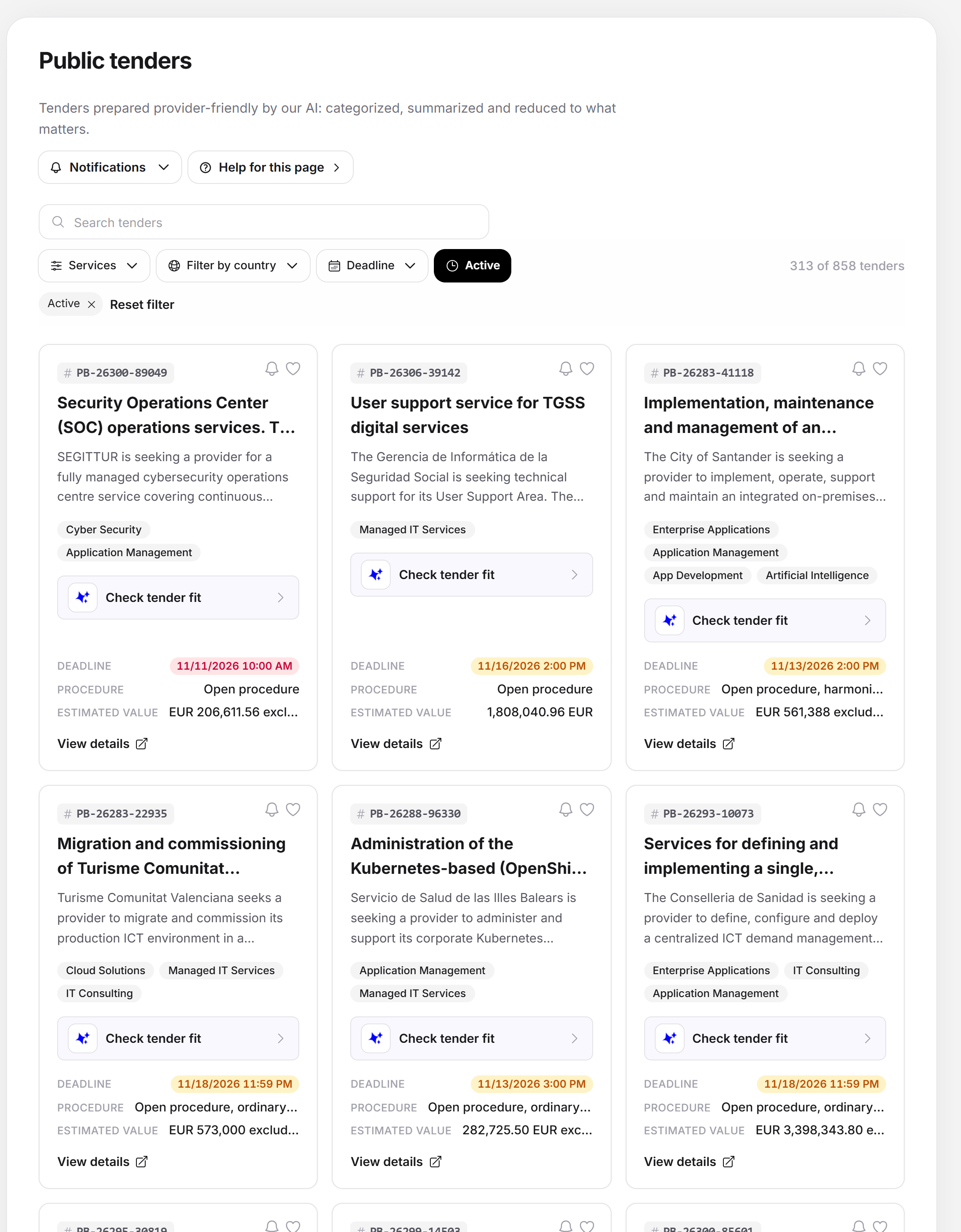
Above the list there is a short introduction: “Tenders processed by our AI in a provider-friendly way: categorized, summarized and reduced to the essentials.” To the right of it is the button Notifications for the emails about new tenders and a link to the guide.
When you first open it, you see placeholders for the search field, filters and tiles. As soon as the data is there, it appears in this place.
Reading a tile
Each tile is built so that you can decide in seconds whether a click is worthwhile. From top to bottom:
- Tender number with a hash, for example #PB-26187-24. This is the Feedbax number, not the procurement number of the contracting authority. You can search for it.
- Label for the type of procedure, if the tender does not yet award a specific contract: “Provider list” (you apply for a place on a list, contracts follow later) or “Market consultation” (the contracting authority is only exploring the market first). A note explains both.
- Expired: If the deadline has passed, this label is shown, the title turns gray and the deadline is struck through.
- Title and summary from the AI analysis, the title over at most two lines, the summary over at most three.
- Service chips: Feedbax services from the same catalog in which your profile is listed.
- Fit box: Without an analysis, it says “Check tender fit”. With an analysis, you see your score, the rating and how many proofs are still open. You see the fit only with an active subscription.
- Key data: “Deadline”, “Procedure” and “Estimated value”, as far as the analysis found them in the documents. The deadline is a colored label and shows the urgency. For a provider list, the row says “Open admission until”, because the date there is not an offer deadline but the end of the list.
- View details: The whole tile is clickable.
At the top right of every tile are a bell and a heart, more on these further down. Each element is explained in detail in Reading the tender list.
Opening a tender
- Click a tile.
- The tender opens in a drawer from the right. The list stays behind it.
- Read the overview, deadlines, requirements and documents. With “Go to procurement platform” you jump to the source, as soon as your subscription unlocks that.
- Close the drawer to return to the list.
When it opens, Feedbax appends the number to the address of your browser, for example ?tender=PB-26187-24. Copy the address and send it to a colleague: they land directly in the same tender. What the drawer shows is explained in The tender in detail. How your fit comes about is explained in The tender fit: how your score comes about.
Searching and filtering
Above the list is the search field Search tenders. It searches title, summary, number, services and type of procedure and waits a moment after your last input. Below it is the filter bar. Some filters appear only when they can have an effect:
Filters | Effect | When it appears |
Services | Multiple selection with its own search, with the number of tenders per service | When there is more than one service |
Filter by country | Multiple selection by the country of the contracting authority, also with search | When there is more than one country |
Fit | “Good fit (60+)”, “Already assessed”, “Not assessed yet” or “No open evidence” | As soon as at least one tender has a fit analysis |
Deadline | “Next 7 days”, “Next 14 days” or “Next 30 days” | When there are still open tenders with a readable deadline |
Active | Hides expired tenders | When there are expired tenders |
Favorites only | Shows only tenders with a heart | From the first favorite |
Followed only | Shows only tenders with a bell | As soon as you follow a tender |
Active filters appear as chips below the bar. A click on a chip removes the filter, Reset filters removes all. As long as a filter is active, the bar shows the hit count, for example “12 of 340 tenders”. If nothing is left, it says “No tenders match the selected filters.” with the button to reset.
What is locked without a subscription: The search field is read-only, and a click on a filter value (service, country or deadline) opens the window with the Tender Access and the Feedbax subscriptions with tenders instead of the filter. Removing an active filter is never locked. More in Searching and filtering tenders.
Bell and heart
- Heart: Remembers the tender for you. This is free for every logged-in provider. With the “Favorites only” filter you call up your watchlist.
- Bell: You follow the tender. Feedbax checks it regularly at the source and sends you an email when deadlines, documents or bidder questions change. Following needs an active subscription; for a tender unlocked with the trial access, it also works without. Otherwise the bell opens the window with the subscriptions. If the bell carries a dot, something has changed that you have not looked at yet.
Both explained in Setting favorites and following tenders.
Setting up emails about new tenders
- Click at the top right on Notifications. The menu is called “Tenders by email”.
- If it says “Your tender emails are off.”, click Turn on.
- Under “From your locations” are the countries of your profile locations. They are permanently switched on with a green check mark and cannot be deselected.
- Under “More countries” you tick every country from which you also want to receive tenders by email. With many countries, a search field helps.
If your profile is not verified yet, the menu says: “Emails only go to verified profiles. As soon as your profile is verified, you will receive them.” You can still choose the countries already.
If you filter by a country for which you do not receive emails yet, a slim note appears above the list: “Also get new tenders by email?” With Activate you switch the country on (and the emails, if they were off). After confirmation, the note collapses. The cross closes it for this country until you reload the page.
Which emails Feedbax sends is explained in Emails about tenders. You also find the switch for tender emails under Notifications.
The trial access
Some companies see a banner “Trial access: 3 tenders for free” in the drawer of a tender. With it, you unlock up to three tenders without a subscription completely: with all details, the documents and your tender fit. An unlock stays permanently.
- You unlock a tender with Unlock for free and the confirmation “Unlock this tender?” The confirmation says how many unlocks remain afterwards.
- The unlocks apply to the company, not to the individual account. Accounts with the same company domain share them. A new account does not bring new unlocks.
- After the first unlock, you have 14 days for the rest. After that, the remaining unlocks expire. The banner names the date (“2 of 3 still free, until …”).
- You can only unlock tenders that are still running.
- You receive the unlocks as soon as your profile has been approved by Feedbax. Until then, the banner explains why nothing is free yet.
- If all unlocks are used up or expired, the banner offers Get access.
The trial access is not open to every company. If you do not see the banner, it is not available for you. What works without trial access and without a subscription is explained in What is possible in the free access.
Empty and error states
- If there is not a single tender, it says instead of the list: “No tenders are published right now. Check back later.”
- If no result matches your filters, you see “No tenders match the selected filters.” and Reset filters.
- If the drawer does not load, it says “The tender could not be loaded.” Then open it again.
- A tender whose analysis is not yet available in your language shows “The analysis is being translated into your language …”.
What your subscription includes
Function | Without subscription (Starter) | With subscription |
View list | yes | yes |
Open tender | anonymized version: contracting authority only as industry and rough region, shortened lists | complete: real contracting authority, all requirements, proofs and award criteria, documents, bidder questions |
Link to the procurement platform | no | yes |
Searching and filtering | no | yes |
Favorites (heart) | yes | yes |
Following with change email (bell) | no | yes |
Tender fit | no | yes |
Two ways lead to access. A Feedbax subscription from Business includes the tenders without you booking anything extra. The standalone Tender Access is a subscription just for this module. Both ways and the terms are explained in The Tender Access: booking, managing, canceling, the Feedbax subscriptions at a glance Which subscriptions does Feedbax offer for providers?. How many analyses your subscription includes is explained in Analysis quota and Feedbax credit. Prices and switching are on the page Plan.
Feedbax score
The Public tenders page and the tender fit do not change your Feedbax score. Conversely, your profile counts: services, reference projects and reviews feed into the analysis and improve your fit.
Frequently asked questions
Why does a pricing window open when I want to filter?
Search and filters are part of the subscription. Without a subscription, the list stays fully visible but cannot be narrowed down. With a Feedbax subscription from Business or the Tender Access, they are free immediately.
Why do I not see the “Fit” filter?
It appears only when at least one tender has a fit analysis. The analysis is created when you open the fit of a tender for the first time, and it is available only with an active subscription.
Why do I see expired tenders?
They stay visible with their analysis so you can see what is being put out to tender in your field and which requirements are common. With the “Active” filter you hide them. You can no longer apply to them.
What does “Provider list” or “Market consultation” on a tile mean?
Both labels say that no specific contract is awarded yet. With a provider list, you apply for a place on a list, and the contracting authority awards contracts later among the providers on the list. With a market consultation, the contracting authority is first exploring the market, and a tender may follow.
Does Feedbax apply for me?
No. Feedbax prepares tenders and estimates your fit. The application always goes through the procurement platform, and the binding check of your suitability is done by the contracting authority. The original documents stay with the procurement platform, Feedbax only links them.
I do not receive emails about new tenders. Why?
Check under Notifications, whether the emails are switched on and whether your country is active under “From your locations” or “More countries”. Emails only go to verified profiles. Further reasons are named in Emails about tenders.