

The Profile > Locations page sets where your company is based. Clients often look for providers near them. That is why your locations help decide on which city, region and country pages of the directories you appear.
Every provider enters at least one headquarters. How many further locations you can add depends on your subscription.
At a glance
You find the page in the provider dashboard under Profile > Locations. The address ends in
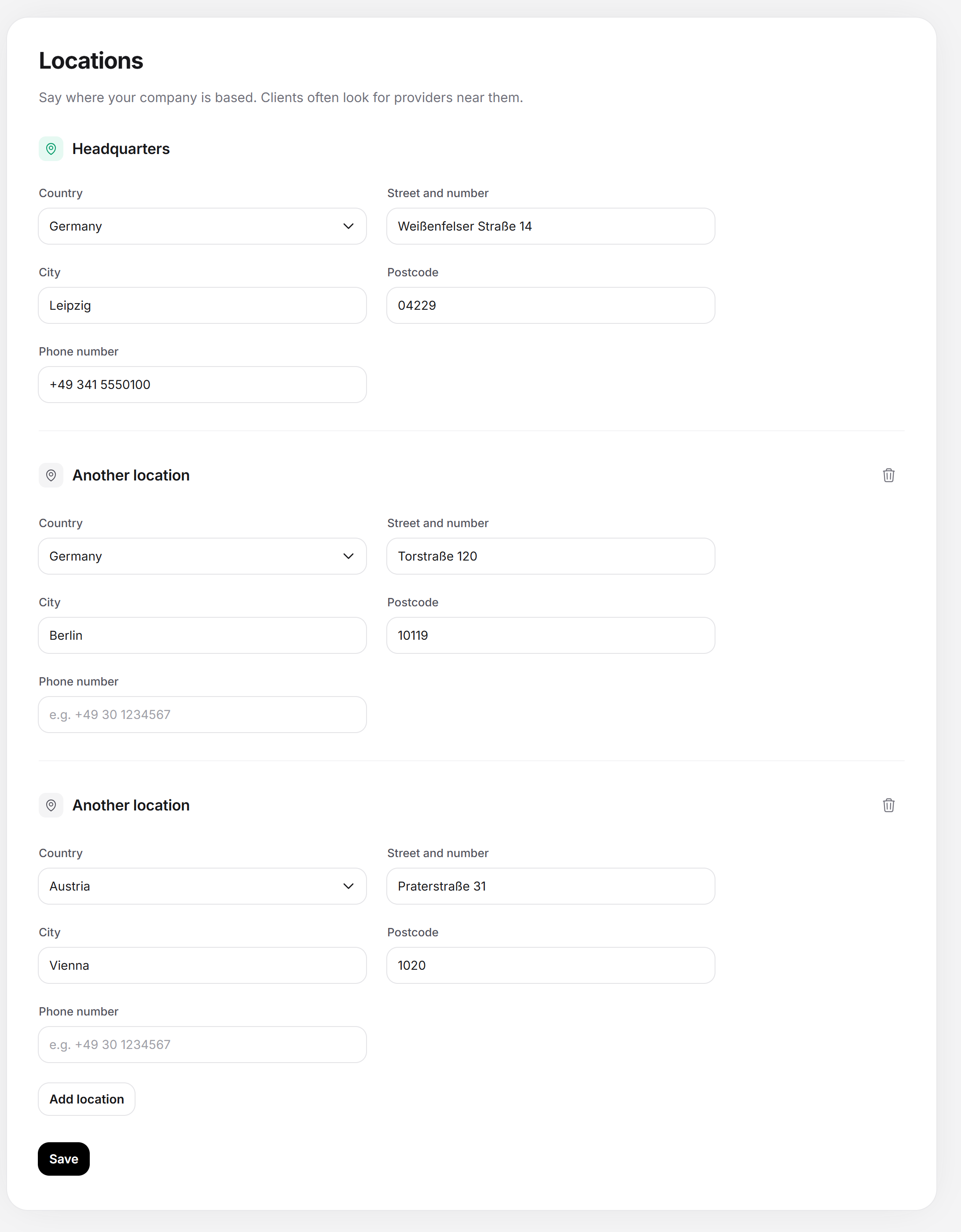
?section=profile-locations.The first location is called Headquarters, every further one Another location. You can’t remove the headquarters.
Required for each location are Country, Street and number, City and Postcode. The Phone number is optional.
How many locations you can add: Starter 1, Business 2, Premium 4, Enterprise as many as you like.
You save all locations together with one Save.
The page counts toward profile progress with four fields at 25 percent each.
How it works
At the top is the note “Say where your company is based. Clients often look for providers near them.” Below it follows one block per location. Each further location has a trash can with the tooltip Remove location to the right of the heading. It takes the location out of the form. The change only applies after Save, though.
Each location has five fields:
| Field | Content | Required |
|---|---|---|
| Country | Choice from all countries, with search. The names appear in the language of your dashboard. | Yes |
| Street and number | Example in the field: “e.g. 1 Example Street”. | Yes |
| City | While you type, the field suggests places (see below). Example: “e.g. Berlin”. | Yes |
| Postcode | Example in the field: “e.g. 10115”. | Yes |
| Phone number | The number of this location, example “e.g. +49 30 1234567”. It must not contain letters, otherwise the field reports “Please enter a valid phone number.” | No |
City suggestions
As soon as you have typed at least two characters in the City field, a list of City suggestions appears after a short pause, with the note “City suggestions by Google”. If you choose a suggestion, the page fills in the city and sets the country to match. Feedbax also remembers the state or region of the city.
You can also type the city by hand. Feedbax then looks up the name of the city in the five profile languages itself when you save and stores the names. This makes you appear on the city pages in each language. This only happens if you changed the city. A city you haven’t touched keeps its saved names. If the place service doesn’t answer, Feedbax saves the name you typed in all languages.
How many locations your subscription allows
| Subscription | Locations | “Add location” button |
|---|---|---|
| Starter | 1 | No, the headquarters already fills the limit. A note below the form says: with the Business subscription you can enter a second location, with Premium four and with Enterprise as many as you like. |
| Business | 2 | Yes, as long as only the headquarters has been added. The note about subscriptions below the form appears only without a Business subscription. |
| Premium | 4 | Yes, as long as the limit of four isn’t reached. |
| Enterprise | as many as you like, the page shows up to 100 | Yes, up to 100 locations. |
If you have saved more locations than your subscription allows, the page shows only the first ones, for example after a downgrade. The remaining locations stay saved. Even a Save doesn’t delete them: Feedbax changes only the displayed locations and leaves the hidden ones untouched. They appear again as soon as your subscription allows enough locations again.
Saving locations
Open Profile > Locations.
In the Headquarters, fill in Country, Street and number, City and Postcode. Add the phone number.
If your subscription allows more than one location (from Business), click Add location and fill in the Another location the same way. Repeat this up to the limit.
Click Save. The button briefly shows “Saving …”, then “Saved.” appears.
Removing a location
In the location’s block, click the trash can Remove location. The headquarters has no icon and stays.
Click Save. Only now is the location deleted. If you reload the page before that, it is back.
Messages and special cases
| Message | Meaning and solution |
|---|---|
| Please fill in this field. | The country, street, city or postcode of a location is missing. The field with the error is highlighted. Nothing is saved until all locations are correct. |
| Please enter a valid phone number. | The number contains letters. Enter only digits and the usual characters such as + and spaces. |
| Please check the highlighted fields. | Summary message above the form when at least one field has an error. |
| That did not work. Please try again. | A technical error while saving. Try again. |
| The data could not be loaded. Please reload the page. | The locations couldn’t be read. Reload the page. |
A country that doesn’t appear in the list, for example from an older data set, can still be selected. So it isn’t lost when you save.
Where the details count
Directories: The directories have country, region, state and city pages. Your locations decide on which of these pages you appear. Countries are recognized by the country code, places by the city name in the language of the page.
Profile progress: Four fields count at 25 percent each: country, city, street and phone number. The postcode doesn’t count. It is enough if any location has the respective field filled in. A complete headquarters therefore already brings the area to 100 percent, and further locations bring no further progress.
Feedbax score
The locations have an indirect effect through profile progress: four fields together bring ten points on the scale from 0 to 100, which go into the delivery part of your Feedbax score. Whether you appear on a city page depends on the location. How the points determine your placement there is explained under Ranking.
Frequently asked questions
We have only one office. Is that enough?
Yes. A fully filled-in headquarters brings a full 100 percent in this area. Further locations only extend your reach.
We work fully remotely. What do we enter?
Enter the address where you can be reached for business, usually that of the registered office from the legal notice.
Can we have locations in different countries?
Yes. The Country field can be chosen freely for each location. If you choose a city suggestion, the page sets the country itself.
I downgraded and no longer see a location. Is it gone?
It is just not displayed. It stays saved, even if you save the page with the smaller subscription, and appears again as soon as your subscription allows it again.
Is the phone number here the same as in Contact for leads?
No. Here you enter the number of the location. The number at which clients reach your main contact for requests is entered under Contact for leads. Both appear in different places.
Why is my city missing from the suggestions?
The list only appears from two characters. If Google finds nothing, you type the city yourself. Feedbax finds the names in the other languages when you save. If Google does not know the place, the name you typed stays.
How many locations can I add at most?
That depends on the subscription: 1, 2, 4 or as many as you like. The Add location button appears from Business as long as you are under your subscription’s limit. The table above shows the limits.