

The Profile > Portfolio page proves that you have delivered. It collects your case studies, key clients, awards and a PDF download. Case studies are the strongest lever here: they show prospects concrete results, and in the directories they count for more than almost any other detail. Next to the page heading is the note Important data.
The page has two tabs. Each part saves on its own. How many case studies you can have, and whether awards are possible, depends on your subscription.
At a glance
You find the page in the provider dashboard under Profile > Portfolio. The address ends in
?section=profile-portfolio.Case studies tab: list of your case studies with a side panel for creating and editing. Next to it is the green note Significant ranking boost.
Clients, awards & downloads tab: three blocks, each with its own Save.
Case studies per subscription: Starter 3, Business 12, Premium 20, Enterprise 100. Awards are available from Business.
The order of the list decides which case studies are visible on your profile.
The area counts toward profile progress with case studies (50 percent), clients (15), awards (15) and download (20).
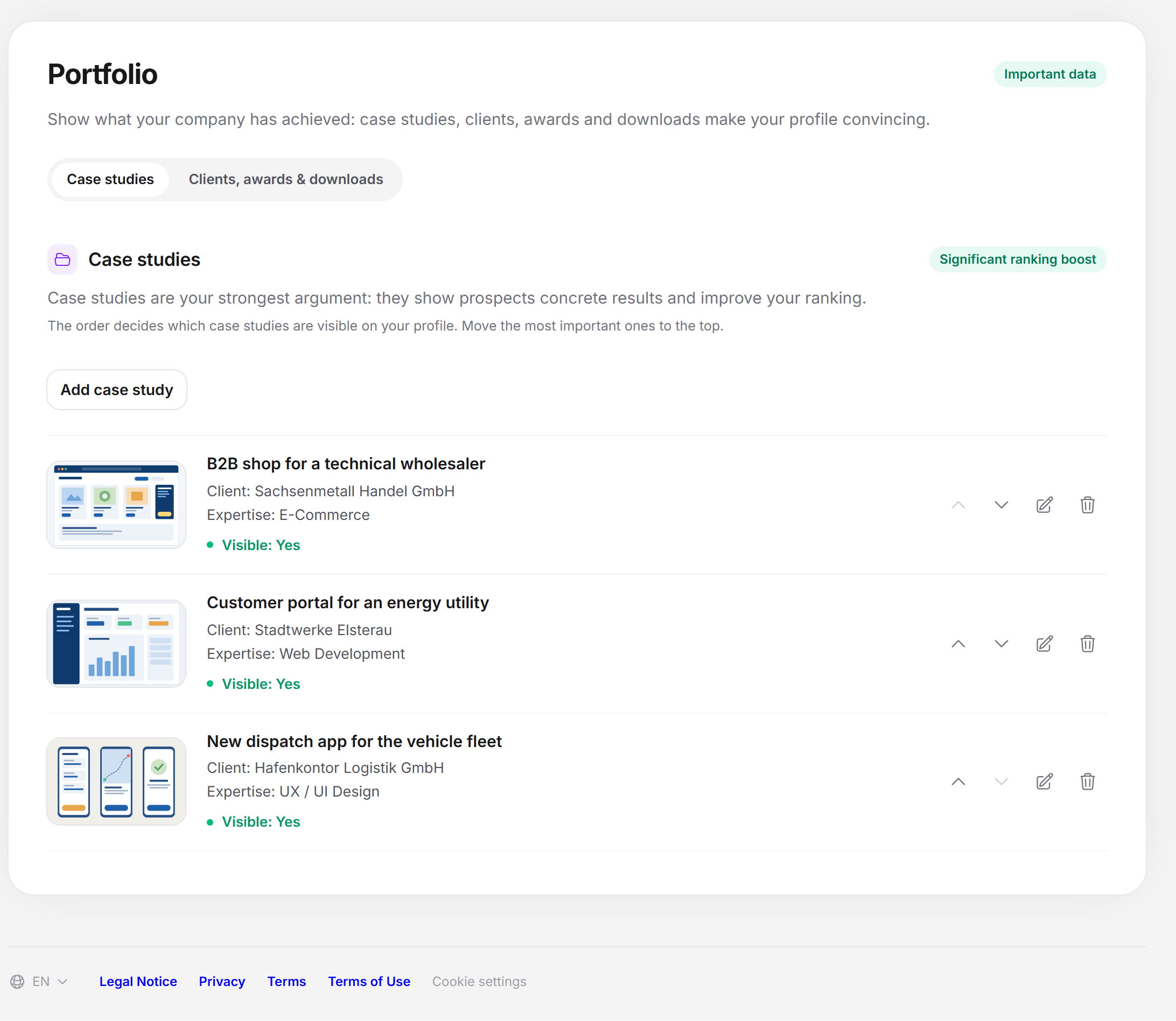
The “Case studies” tab
At the top it says “Case studies are your strongest argument: they show prospects concrete results and improve your ranking.” Below that: “The order decides which case studies are visible on your profile. Move the most important ones to the top.”
Each case study is a row with header image, project name, Client, Expertise and the status Visible: Yes (green) or Visible: No (red). A missing client appears as a dash. On the right of the row are four icons:
Move up and Move down swap the case study with its neighbor. This is saved right away.
Edit opens the “Edit case study” side panel.
Delete is replaced by Really delete. Only this second click deletes the case study. A click elsewhere takes the prompt back. Deleting happens right away.
How many case studies are visible
| Subscription | Case studies on the profile |
|---|---|
| Starter | 3 |
| Business | 12 |
| Premium | 20 |
| Enterprise | 100 |
The first case studies in the list are visible until the limit is reached. All further ones appear in the list with Visible: No. They stay saved, but don’t appear in the profile and don’t count for the ranking. After an upgrade, they become visible again. So move your best case studies to the top.
When the limit is reached, the note “You have reached the maximum number of case studies (N)” replaces the button for adding. It also says “With a higher plan you can show more case studies.” You can read more about the subscriptions under Which subscriptions does Feedbax offer?.
Creating or editing a case study
Open Profile > Portfolio and stay in the Case studies tab.
Click Add case study. To edit, you click Edit in the row. The side panel opens from the right.
Upload at least one image (see below).
Choose the Industry and the Expertise. Both are required.
If the page offers them, choose the Focus areas (depending on expertise).
Write the Description. It is required. Add Challenge, Solution and Results if you like.
Click Save at the bottom of the panel. The panel closes, the case study is in the list and “Saved.” appears. With Close at the top of the panel, you discard the changes.
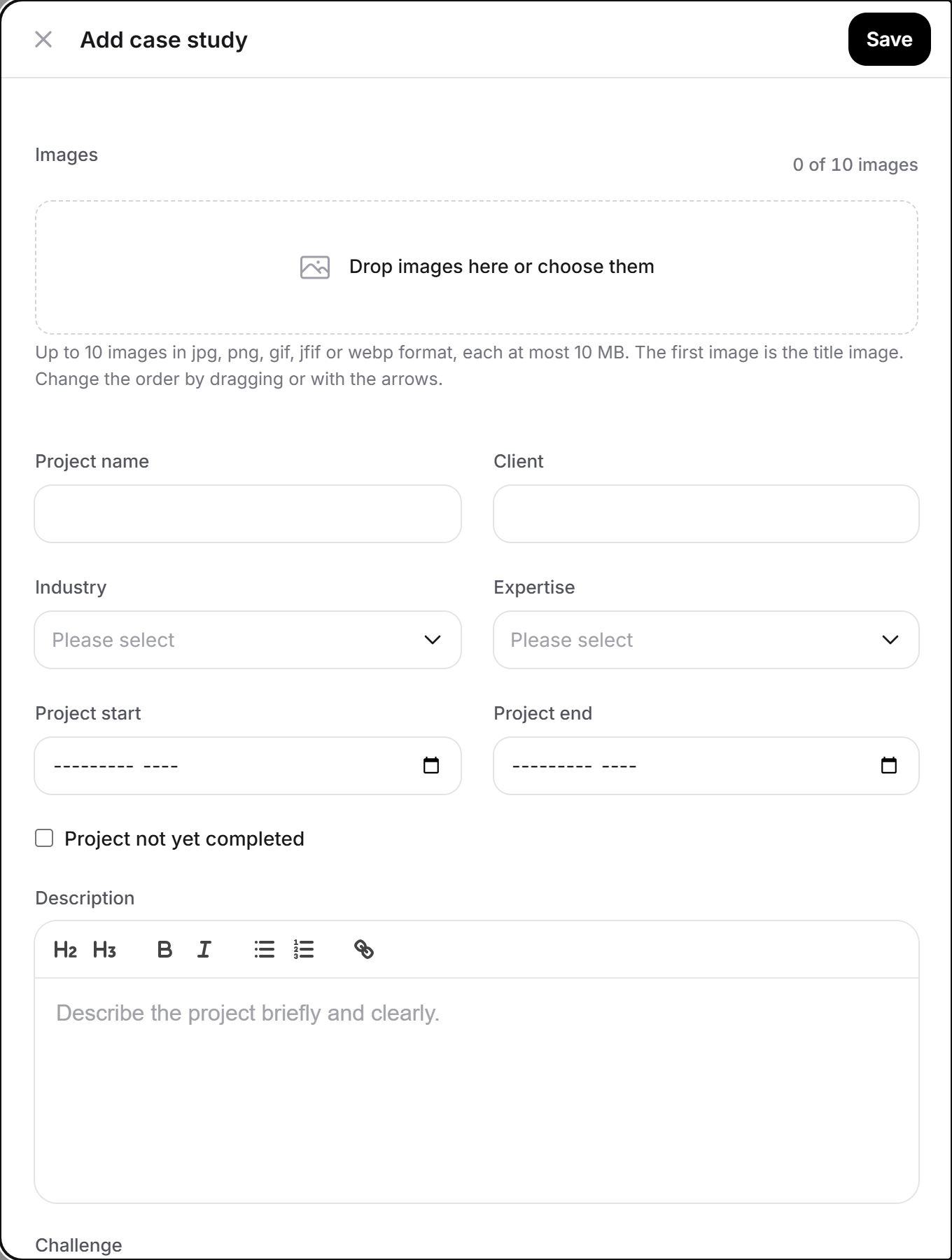
| Field | Content | Required |
|---|---|---|
| Images | Up to 10 images (see below). The first image is the header image. | Yes, at least one image for a new case study |
| Project name | The title of the case study. Is translated. | No |
| Client | Name of the client. Is not translated. In the list, it follows “Client:”. | No |
| Industry | Choice from the industry list. | Yes |
| Expertise | The service the project belongs to. It decides in which directories the case study counts. | Yes |
| Project start, Project end | Month and year (month picker). | No |
| Project not yet completed | Checkbox for ongoing projects. | No |
| Focus areas (depending on expertise) | Chips to click. They only appear once you have chosen an expertise and it has known focus areas. Focus areas that were already saved but no longer fit the expertise stay visible and can be deselected. | No |
| Description | Text editor with the placeholder “Describe the project briefly and clearly.” Is translated. | Yes |
| Challenge | Placeholder “What task did the client set?” Is translated. | No |
| Solution | Placeholder “How did your company solve the task?” Is translated. | No |
| Results | Placeholder “What did the project achieve? Name figures if you can.” Is translated. | No |
The four text editors offer headings, bold, italic, bullet list, numbered list and links, but no images.
The images of a case study
The Images block shows a counter such as “2 of 10 images” under the heading and a drop area “Drop images here or choose them”. Below it is the note “Up to 10 images in jpg, png, gif, jfif or webp format, each at most 10 MB. The first image is the header image. Change the order by dragging or with the arrows.” Chosen images briefly show “Reading …” and then appear as tiles.
The first image carries the tag Header image. It is the image that comes first in the list and in the profile.
Move forward and Move back shift an image by one place. You can also drag it.
Use as title image puts another image in first place.
Remove image takes the image out. The change only applies after Save.
JPG, JPEG, PNG, GIF, JFIF and WebP are allowed, each at most 10 MB. If you choose more images than there is room for, the gallery takes only as many as fit and reports “A case study can have at most 10 images.” For an invalid format, the tile reports “Only JPG, JPEG, PNG, GIF, JFIF and WebP are allowed.”
Project dates
Project start and project end only apply if the year is between 2000 and the current year. An invalid date is left empty when you save. If the end is before the start, or a valid start is missing, the end is left empty as well. The Project not yet completed checkbox is saved independently of this.
The “Clients, awards & downloads” tab
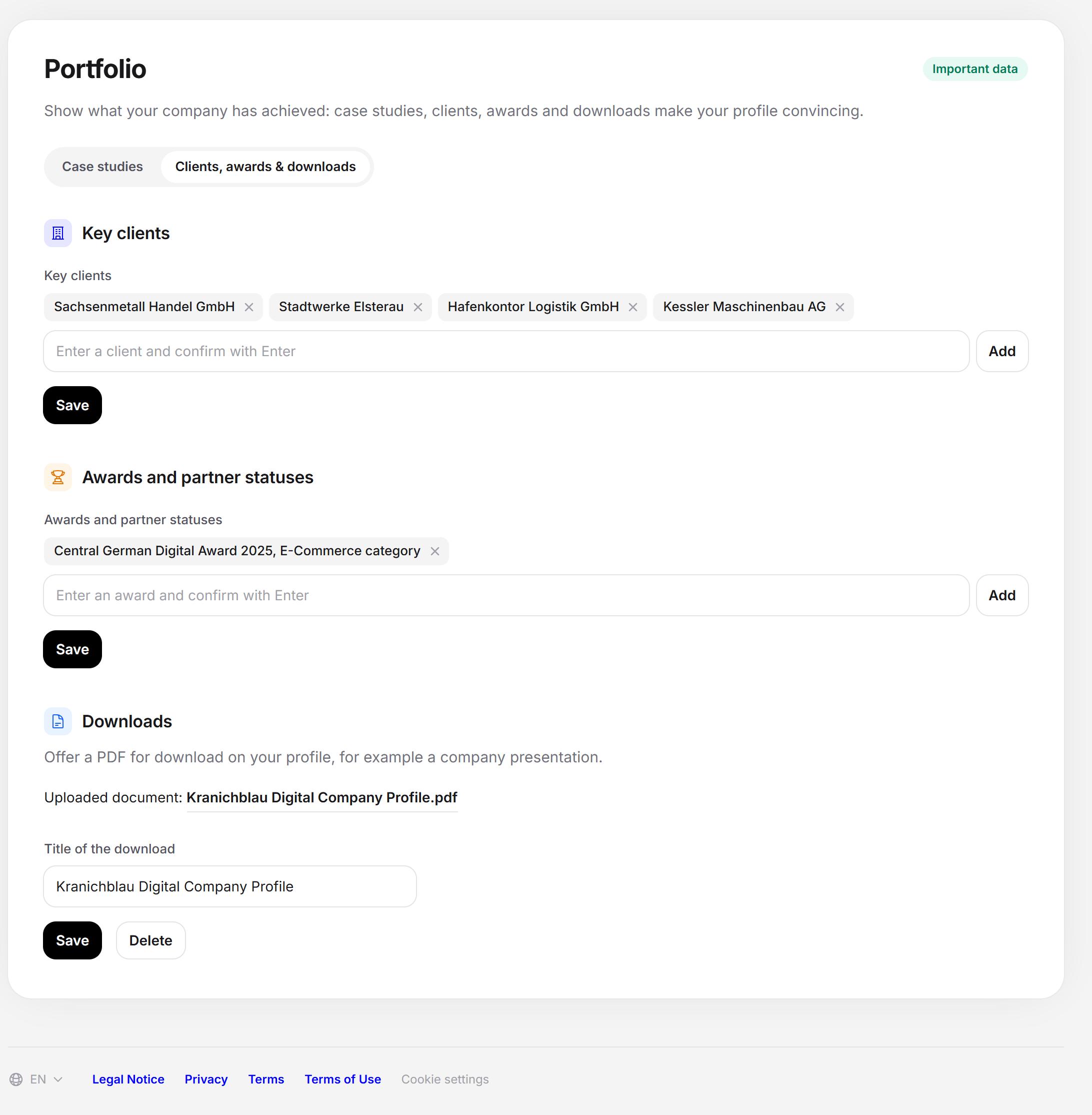
Here are three blocks one below the other. Each has its own Save and reports its result right next to it.
Key clients
An input field for keywords with the placeholder “Enter a client and confirm with Enter”. You type a name and press Enter or click Add, and it becomes a chip. With Remove entry on the chip, you take it out. A comma in the text separates entries, and duplicate entries are dropped. This block is available in every subscription. Enter only clients you have really served, and check beforehand whether your contracts allow naming them.
Awards and partner statuses
Built the same way, with the placeholder “Enter an award and confirm with Enter”. Awards and official partnerships belong here. The block can be used from the Business subscription. Without Business, the note “Not included in your plan” appears with the text “You can add awards and partner statuses with the Business plan.” The server doesn’t accept awards without Business either. Awards are translated like the texts. A single entry may have at most 100 characters, and a longer one is shortened to 97 characters followed by “...”.
Downloads
Here you upload exactly one PDF, for example your company presentation. The note reads “Offer a PDF for download on your profile, for example a company presentation.”
Enter a title in the Title of the download field, for example “Company presentation”. The title is required.
Choose the file with Upload PDF. Only PDF files up to 20 MB are allowed.
Click Upload.
After that it says “Uploaded document:” with a link showing the title and the .pdf ending. The file field is gone. You can now only change the title and click Save, or remove the file with Delete. If you want to replace the file, you delete it first and then upload the new one. Deleting takes effect right away.
Messages and special cases
| Message | Meaning and solution |
|---|---|
| Please fill in this field. | Required field empty: for the case study, industry, expertise, description or the first image; for the download, the title or the file. |
| Only PDF files are allowed. / The file may be at most 20 MB. | The download file is not a PDF or is too large. |
| Only JPG, JPEG, PNG, GIF, JFIF and WebP are allowed. / The file may be at most 10 MB. | A case study image doesn’t fit. It is not applied. |
| A case study can have at most 10 images. | You chose more than 10 images. Remove images. |
| This area is available from the Business plan. | You tried to save awards without Business. The server rejected it. |
| The file could not be stored. Please try again. | An upload failed. Nothing was saved. |
| That did not work. Please try again. | A technical error. This also applies to sorting and deleting. |
| The data could not be loaded. Please reload the page. | Case studies and the other blocks load separately. The affected part reports the error itself. |
Where the details count
Applying to project requests: The application assistant requires at least one case study whose expertise matches the service being sought. If it is missing, the application is blocked. Many case studies only help if they carry the right expertise. More on this under Project requests.
Top provider badges: One condition is at least one case study that matches a service or a focus area of the directory. See Top provider badges.
Profile progress: At least one case study brings 25 percent, and from three case studies another 25 percent are added. An entry under clients brings 15, one under awards 15, an uploaded PDF 20 percent.
Feedbax score
Case studies are the strongest single item for the delivery part of your Feedbax score. In every directory, each visible case study counts 5 points. Each case study that fits the directory brings another 20 points. It fits if its expertise belongs to the directory’s services or if a focus area of the directory is among its focus areas. Only the case studies that are visible according to your subscription can count. That is why it pays to choose expertise and focus areas carefully for each case study.
Clients, awards and the download have only an indirect effect through profile progress. Together they bring up to 5 points on the scale from 0 to 100. How the ranking uses the points is explained under Ranking.
Frequently asked questions
May we name clients without asking them first?
Check this against your contracts. Some framework agreements contain a reference clause, others forbid naming. If in doubt, briefly ask the client.
Why do I see only a note for awards?
The block is unlocked from the Business subscription. You can use clients and the download in every subscription.
Can I upload several PDFs?
No, exactly one file is possible. Delete the existing file before you upload a new one.
I have many case studies, but none fits the request. Why?
For an application, only the expertise of the case study counts. Open the case studies and check whether the expertise fits the service being sought. Without a matching expertise, the application is blocked.
I downgraded. Are my extra case studies deleted?
No. They appear in the list with Visible: No, don’t appear in the profile and don’t count for the ranking. After an upgrade, they are visible again.
How do I choose the header image?
The first image of the gallery is the header image. Drag another image to the first place or click Use as title image on it.
Where do I enter the website or the social media channels?
The website is under Contact for leads, the channels under Social media.