

The overview shows every prepared tender. To pull out the ones that suit you, there is a search box and a filter bar. Both work directly in your browser: the list recalculates instantly, with no waiting and no reloading.
Search and filters are part of the subscription. Without an active subscription, clicking into the search box or on a filter value opens the pricing overview. Why that is, and what you still have without a subscription, is in What the free access includes.
The search box
Above the filter bar sits a rounded field with a magnifying glass. Type a term and the list reacts with every character.
Five fields are searched at once:
the title
the short summary
the tender number
the procedure type
the services
Case does not matter. A fragment is enough: "cloud" also finds "Cloud framework agreement".
A cross appears on the right of the field as soon as it contains something. That clears the search.
Three uses that pay off:
Type the tender number when you want to find a specific tender again.
Type a procedure type, such as "negotiated procedure", when you only work on that kind.
Type a technical term the service catalogue does not know, such as a product name or a technology.
The filter bar
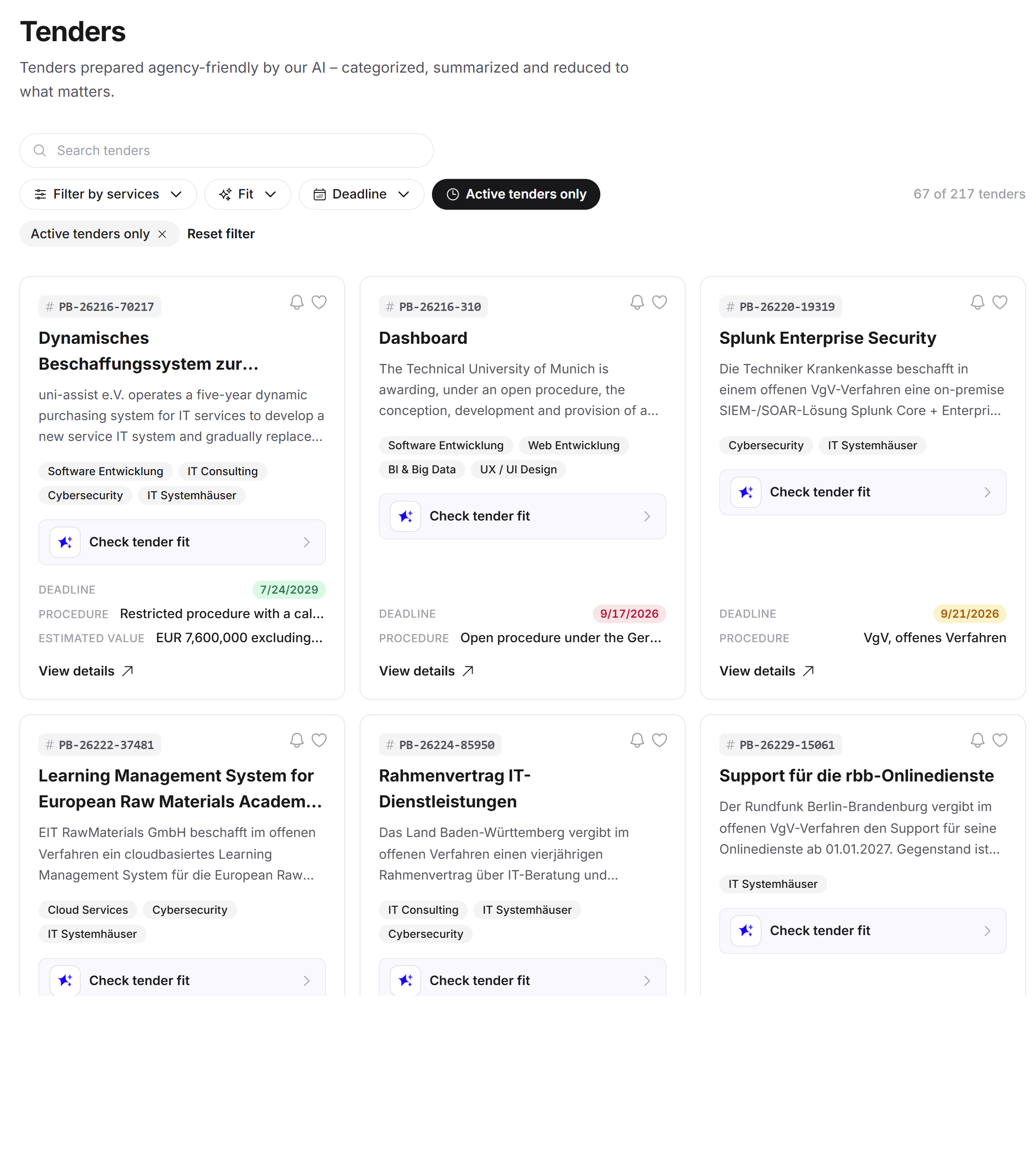
Below the search box sits a row of rounded buttons. Feedbax hides every filter that would have nothing to filter. If there is only a single buyer country in the list, the country filter does not appear at all. Your bar therefore looks different depending on the data.
Filter by services
A click opens a searchable list of every service the tenders request. Behind each service is a number: that many tenders request it.
You can select several services. The selection acts as an OR: a tender stays visible as soon as it requests at least one of the chosen services.
A search sits above the list. With many services that is the fastest route. The number of selected services appears as a circle on the button.
The filter only appears once at least two different services occur.
Country
Same structure, but for the buyer's country. Again with a count per country and multiple selection.
This filter matters mainly because TED brings in tenders from across the EU. If you only want German procedures, set Germany here and the list gets considerably shorter.
In the filter's search box you can also type the country code instead of the name.
The filter only appears once at least two countries occur.
Fit
This filter turns the list into a priority list. Four values are available, one at a time:
Good fit: only tenders with a fit score of 60 or higher.
Assessed: everything that already has a fit analysis.
Not assessed: everything that does not yet. This is your work list.
No open proofs: only tenders with no outstanding proof.
The fit filter only appears once at least one tender has an analysis. A second click on the same value clears it again.
Combining "Good fit" with the deadline filter is the fastest route to a realistic application list.
Deadline
Three windows are available: the next 7, 14 or 30 days. Only one applies at a time.
The filter keeps only tenders whose deadline is still in the future and at most that many days away. Expired ones drop out, and so do tenders without a readable deadline date: an unknown deadline cannot satisfy a time window.
The filter only appears once at least one open tender with a readable deadline is present.
Active tenders only
A switch, not a menu. Turned on, every expired tender disappears from the list.
It only appears once there is at least one expired tender.
Favorites only
Shows only the tenders you marked with the heart. The switch only appears once you have at least one favorite.
Followed only
Shows only the tenders you follow. The switch only appears once you follow at least one.
These two switches are your actual working view: favorites are your shortlist, followed tenders are the ones you get told about on every change. More on this in Favorites and following tenders.
The chips below the bar
As soon as a filter is active, a row of chips appears below it: one per active filter value. A click on a chip removes exactly that filter.
At the far right of the row sits Reset filters. That clears all filters and the search box at once.
Removing a filter is never gated, not even without a subscription. Only setting one is.
The result count
As soon as a filter is active, a figure such as "12 of 148" appears at the right of the filter bar. The left number is how many tenders the filters leave, the right one how many there are in total.
Use that figure while narrowing down: if it drops to zero when you set a filter, the combination is too tight.
When nothing is left
If no tender matches any more, Feedbax shows a box with a note and a Reset filters button instead of the cards. So you never end up in an empty view you cannot get out of.
How the filters interact
All filters apply at the same time and as an AND. A tender stays visible only if it satisfies every active condition.
Within one filter, multiple selection is an OR instead. Choose "SEO" and "Web development" and you see tenders requesting either.
An example that often fits:
Turn on Active tenders only.
Set your country in the Country filter.
Pick your two or three core disciplines under Services.
Choose the next 30 days under Deadline.
Set Fit to Not assessed.
What is left is your work list for this week.
What the filters do not do
The filters load no new data. They work on the tenders already loaded. That is why they are so fast, and why changing a filter never surfaces tenders that were not in the list before.
Filters are also not stored. Reload the page and you start with the full list again.
Frequently asked questions
Why can I not type into the search box?
Then you have no active subscription. The field is read-only in that case, and a click opens the pricing overview. Without a subscription the list stays fully visible, it just cannot be narrowed down.
I do not see the country filter.
Then every loaded tender comes from the same country. Feedbax hides filters that would have no effect.
Why is the fit filter not gated?
Because it only appears once fit analyses exist, and those exist only with a subscription. Anyone who can see the filter already has access.
Can I filter by contract value?
No. The contract value is often stated as an order of magnitude rather than a figure, so there is no filter for it. The search box gets you a long way though: terms such as "million range" or "six-figure" appear verbatim in many short summaries.
My selection is gone after a reload.
That is intended. Filters apply to the current view and are not stored.
A filter disappears while I work.
That happens when the data changes, for example after you removed your last favorite. Feedbax then takes the matching filter out of the bar and out of your selection, so the list cannot stay permanently empty.