

The Tenders overview is your starting page in this section. It shows every tender Feedbax has prepared as cards in three columns. Each card is built so you can decide in seconds whether a click is worth it.
This article explains every element of the card. How to narrow the list down is in Searching and filtering tenders.
The top of the page
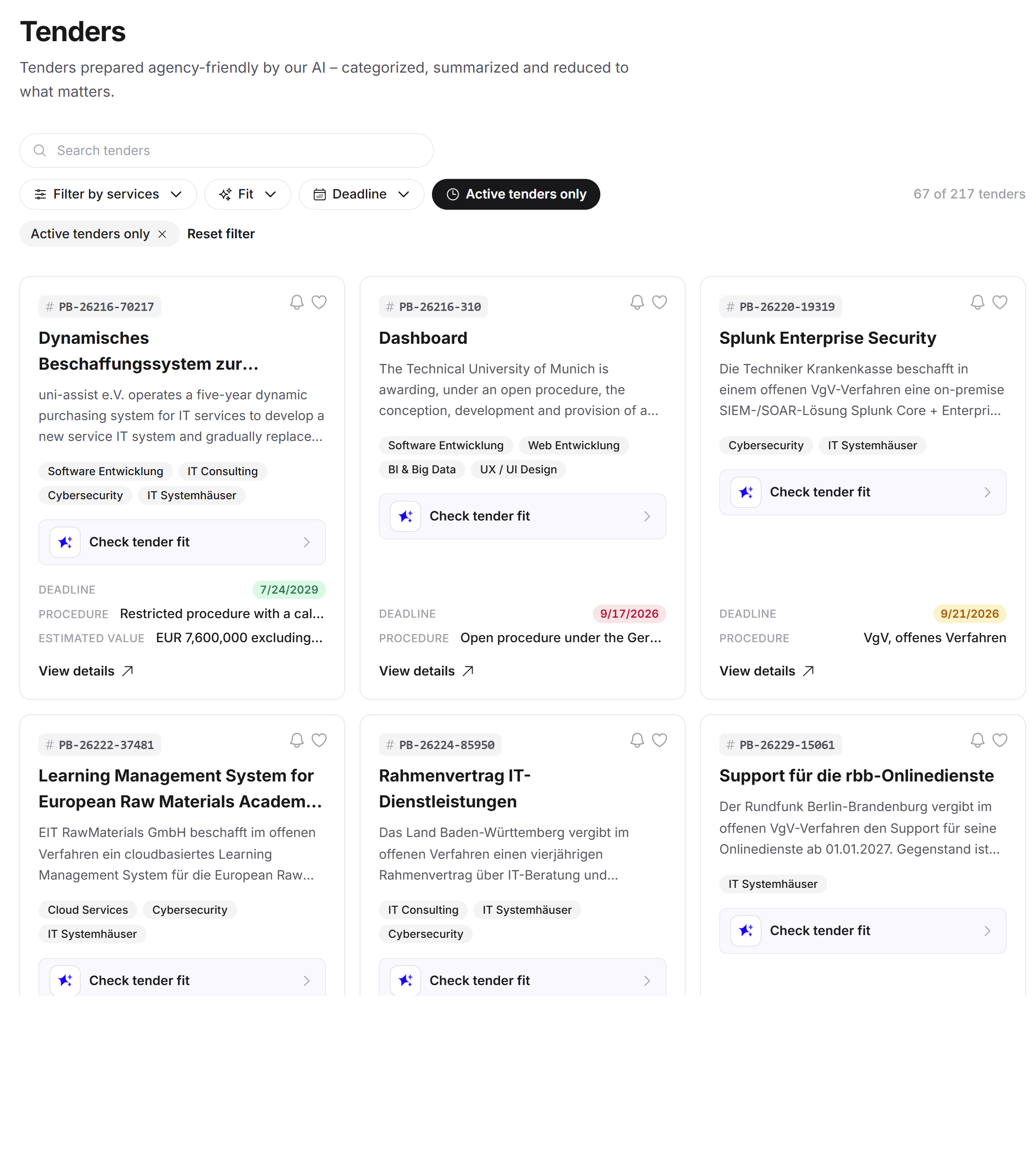
At the top you see the title Tenders and a line describing the promise: tenders prepared by the AI, categorized, summarized and reduced to the essentials.
If there is not a single tender, an empty box with a note appears instead of the card list.
The tender number
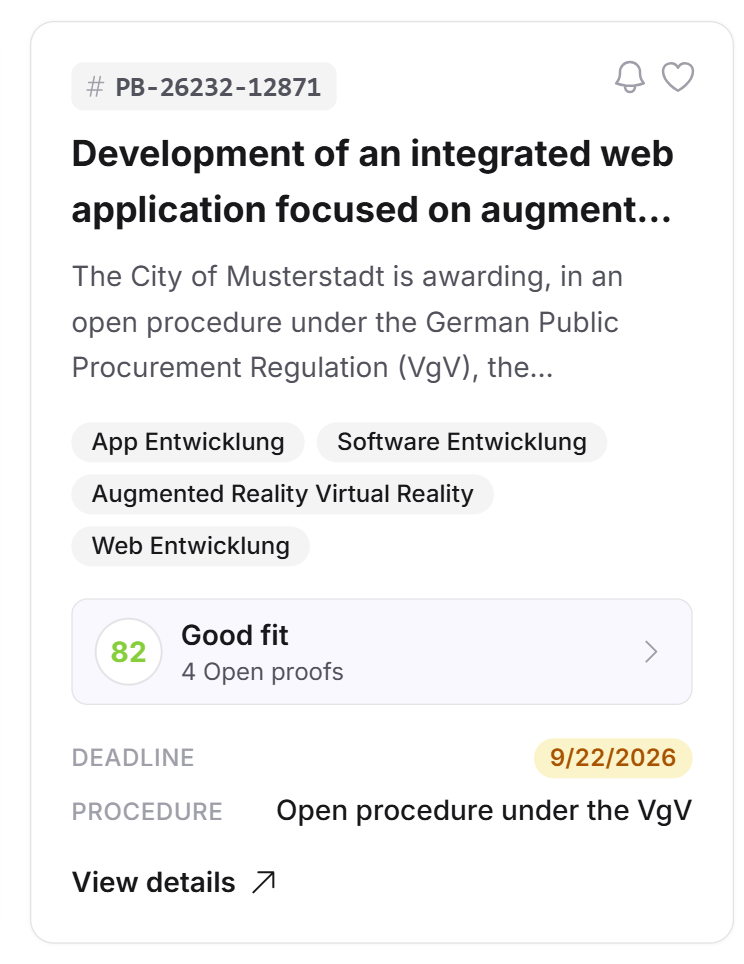
The top left of every card carries a number preceded by a hash sign, for example PB-26187-24. That is the Feedbax number of the tender, not the buyer's own procurement reference.
The number is useful: it is short, unique and searchable. When you talk about a tender internally, quote this number.
The expired badge
Once the submission deadline has passed, a grey EXPIRED badge sits next to the number. The title turns grey as well, and the deadline at the bottom is struck through.
Expired tenders do not disappear. That is deliberate: they show you what is being tendered in your field, which requirements are common and what order of magnitude is being awarded. To hide them, use the Active tenders only switch.
Title and short summary
Below that come the title and a short summary. Both come from the AI analysis, not from the procurement platform. Procurement platforms often name their procedures in an unwieldy way; Feedbax turns that into a line you can understand.
The title runs over at most two lines, the summary over at most three. Anything longer is cut off. You get the full text when you open the tender.
The service chips
Next come small grey chips with services, for example Web development, SEO or Cloud services. These are Feedbax services from the same catalogue your own profile is listed in.
Feedbax has matched the tender's requirements against that catalogue. So the chips do not tell you what the buyer literally wrote, but what it means in Feedbax terms. The service filter and the matching of tenders to providers run on exactly this.
The fit tile
The most prominent part of the card is the blue box below. It has two states.
No analysis yet. It then reads Check tender fit with a sparkle icon. A click opens the tender, and you start the analysis from there.
Analysis available. Your score then sits on the left inside a circle, with the category next to it and the number of open proofs below. The categories are:
Score | Category |
--- | --- |
85 to 100 | Very good fit |
70 to 84 | Good fit |
50 to 69 | Possible fit |
below 50 | Weak fit |
This lets you work through a long list very quickly: the score tells you where reading pays off. Everything about the calculation is in The tender fit: how your score is built.
You only see the fit with an active subscription. Without one, the box carries the invitation to unlock it.
The three key facts
At the foot of the card sit up to three lines. They appear only when the analysis found the value:
DEADLINE: the submission deadline, with a colored background.
PROCEDURE: the procedure type, for example "open procedure" or "negotiated procedure with a call for competition".
CONTRACT VALUE: the estimated value, often as an order of magnitude such as "mid single-digit million range, net".
The deadline date is rendered in your language. The source supplies German date formats; in the English interface you see the same date in the English format.
The colors of the deadline
The deadline is not a plain line but a colored badge. The color shows urgency:
Red: the deadline is imminent.
Amber: the deadline is approaching.
Green: there is plenty of time left.
Grey and struck through: the deadline has passed.
That is the fastest piece of information on the whole page. If time is short, work through the red and amber badges first.
Bell and heart
Two round buttons sit at the top right of every card:
The bell is following. Feedbax then monitors the tender at the source and reports changes.
The heart is the favorite. It saves the tender for you.
Both are described in Favorites and following tenders. In short: any signed-in provider can favorite, following requires a subscription.
Signed-in buyers see neither the bell nor the heart. Both are provider features.
If the bell carries a dot, something changed on a tender you follow and you have not looked at the change yet.
View details
At the very bottom it reads View details. You do not have to hit that line: the entire card is a button. A click opens the tender in a drawer from the right, without losing the list.
What awaits you there is described in The tender in detail.
Taking the address with you
When you open a tender, Feedbax appends its number to your browser address, for example ?tender=PB-26187-24. Copy the address and send it to a colleague: they land in the same tender directly.
The same works for the tender fit. With &view=fit in the address, the fit analysis opens along with it.
Frequently asked questions
In what order are tenders listed?
The list arrives in the order Feedbax provides the tenders. There is no sorting control. Use the filters instead, especially the deadline filter and the fit filter.
Why do some cards show no contract value?
Because it is not stated in the documents. Feedbax only reports what the analysis found in the procurement documents and invents no figures. A missing line means a missing statement at the source.
Can I see more than three cards side by side?
The number of columns follows your window width: one column on a phone, two on medium screens, three on large ones.
Why does a card show no services?
Then the analysis found no Feedbax service with a strong enough match for that tender. The tender stays readable, but it does not appear in the service filter.
I have a subscription but see no fit score.
Then no analysis has been created for that tender yet. The fit is not generated automatically for every tender; it is created when you open it for the first time. After that the score also appears on the card.