

A review widget shows your Feedbax reviews right on your own website. It updates by itself, so there is nothing to maintain twice.
The strongest reason to embed one is not written on the page though: an embedded widget earns you 100 points on your reputation score. More on that below.
You will find the widgets in the dashboard under Marketing > Review Widgets.
How to embed a widget
Open Marketing > Review Widgets.
Scroll to the variant you like. Above each variant you see a real preview with your own data, not a placeholder image.
Click the grey code box below it. That selects the whole code, then copy it with Ctrl+C.
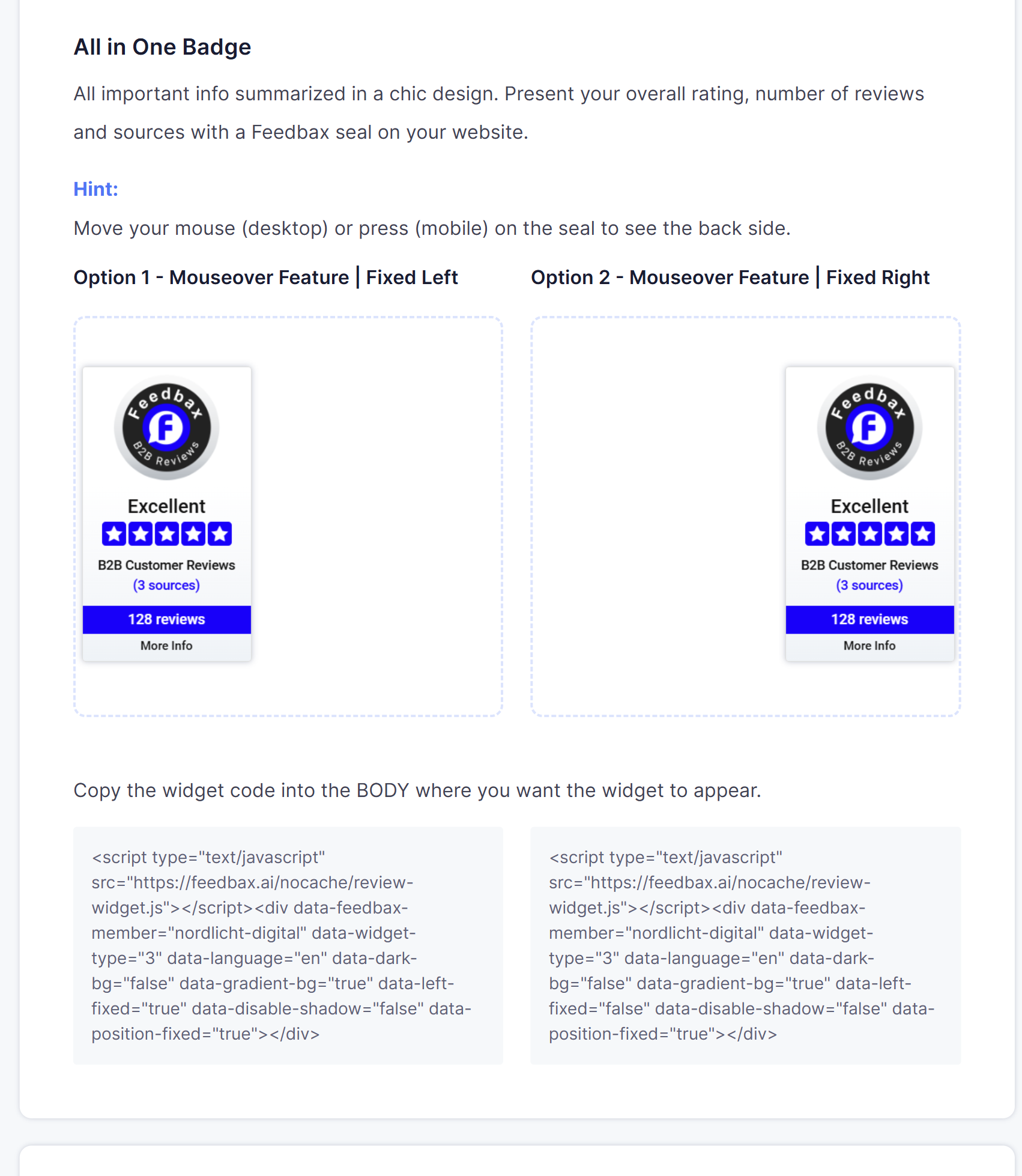
Paste the code into your website inside the body, exactly where the widget should appear. That is what the hint above the box says too: "Copy the widget code into the BODY where you want the widget to appear."
Save and publish the page.
The code always has two parts: a <script> tag that loads the widget software, and a <div> carrying the settings. They belong together, always copy both.
The six variants
All in one badge. Overall rating, number of reviews and number of sources in a single badge. It has a back side: hover it with the mouse on a computer or tap it on a phone and it flips over to show reviews. There are two options, fixed left and fixed right. Fixed means the badge sticks to the edge of the screen and scrolls along. A good choice when it should be visible on every page.
Premium badge. The same core data as the all in one badge, but as a normal element in the page flow instead of pinned to the edge.
Review badge. A slider with your best and most recent 10 reviews. Only reviews with at least 4 stars and at least 100 characters of text are included. This is the right pick for a references page, because it shows real customer voices rather than just a number.
Feedback badge. Not a display badge but a collection tool. It leads visitors to your own Feedbax page for leaving a review. Put it where customers land after a project, for example in the footer of a project closing page.
Compact badge. Small and unobtrusive, meant for footers and contact pages.
Horizontal badge. A flat bar with overall rating, number of reviews and sources. Careful: for the full view this badge needs a minimum width of 690 pixels. It will not fit into a narrow sidebar or on a phone.
Adjusting the preview
Above the previews there is a small settings area. It changes only the preview and the generated code, not your website:
Dark background: shows the badges on a dark ground so you can tell whether they suit your design.
Centered: places the badge in the middle instead of left aligned.
No shadow and no gradient: remove the effects if your design is flat.
Simulate fixed: shows you how the all in one badge looks pinned to the screen edge.
When you change something the page reloads and the code boxes below change with it. So only copy the code once the preview looks the way you want it.
You can recognise the settings inside the code, for example data-dark-bg, data-center or data-left-fixed. data-language is in there as well. If you run an English website, switch the dashboard to English before you copy the code.
The 100 points for your reputation score
This is the part that pays. Feedbax checks whether your company has a widget in use. If so, you are credited 100 points on your reputation score. The reputation score feeds into your Feedbax score, and that decides your position in the directories.
For comparison: a single review counts considerably less. A widget embedded once is therefore the fastest score gain in the product, and it costs you only the two minutes it takes to paste it.
There are three conditions to know, otherwise the points will puzzle you:
The widget has to be loaded for real. It counts when a visitor opens your page with the widget on it. Code sitting in an unpublished draft does not count.
The load must not be older than 10 days. If the page with the widget gets no visit at all for ten days, the points fall away until someone comes back. So put the widget on a page with traffic, ideally in the footer.
Test and preview addresses do not count. Loads from addresses containing
localhost,test.,staging., from the Elementor preview or from a Webflow preview domain are filtered out. The widget has to run on your real, public website.
How this connects to the Feedbax score
Besides the 100 points, the widget works a second way. Visitors to your website see your reviews and click through to the profile. Satisfied customers leave a review more easily there, and reviews are the single strongest factor in the score.
How the score is composed is explained in What is the Feedbax score?. What it means for your visibility is in How does ranking in the directories work?.
What you need
No subscription. Review widgets are open to every provider. All you need is:
a published profile, see Getting your profile approved,
reviews, otherwise the badge has nothing to show,
and access to your website's source code.
How many review sources are added up inside the badge does depend on your plan though: without a subscription only Google counts, from Business on Trustpilot and ProvenExpert join in, from Premium on Clutch, DesignRush, GoodFirms and G2. The higher the plan, the bigger the number on the badge.
Frequently asked questions
Does this cost anything?
No. The widgets are free for every provider, whatever the plan.
Where exactly do I paste the code?
Into the body of your page, where the badge should sit. For the fixed variants the position does not matter, because they place themselves at the edge of the screen.
Can I embed several widgets?
Yes. You could put the compact badge in the footer and the review badge on your references page.
Why does my widget show nothing?
Either your profile has no reviews yet, or it is not published yet. For the review badge there is one more reason: it only takes reviews with at least 4 stars and at least 100 characters.
Why am I not getting the 100 points?
Usually it is one of the three conditions above: no real load, no visit for more than 10 days, or the widget runs on a test or preview address.
Do I have to update the code when new reviews come in?
No. The widget loads its data itself and always shows the current state.
The horizontal badge looks cut off.
It needs at least 690 pixels of width. Use the compact badge or the premium badge in that spot instead.
Can I change the language?
Yes. The language sits in the code as data-language. Switch the dashboard to the language you want and copy the code again.