

The Profile > Team page shows who is behind your company. It has two parts: at the top the team photo with the team story, below it the People on your team list with photo, position and areas of expertise. Both appear on your public provider profile and build trust before a client gets in touch.
The page is fully usable in every subscription, even with Starter.
At a glance
You find the page in the provider dashboard under Profile > Team. The address ends in
?section=profile-team.At the top, you save the Team photo and Team story with their own Save. The team story is required.
Below it, you add up to 10 people, the same number in every subscription. Each person is saved on its own in a side panel.
The order of the list is the order on your profile.
The team story and the people’s texts (position, description, skills) are translated automatically into the other profile languages.
The upper part counts toward profile progress with the team photo and team story at 50 percent each. The people don’t count there.
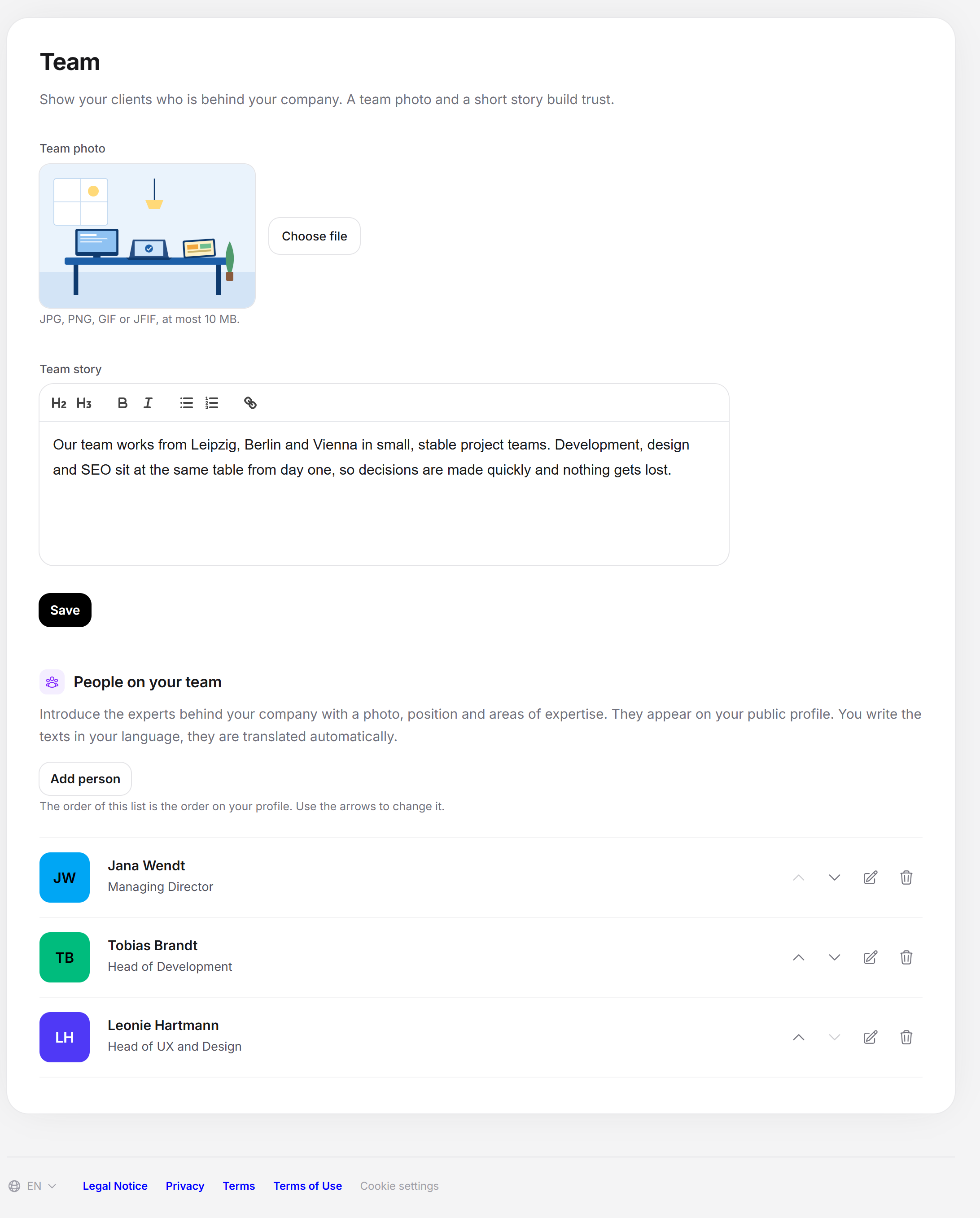
Part 1: team photo and team story
At the top is the note “Show your customers who is behind your company. A team photo and a short story build trust.” There are two fields:
Team photo. A photo of your team as JPG, PNG, GIF or JFIF, at most 10 MB. With Choose file you pick the image, with Remove you undo the selection. The image is only uploaded with Save.
Team story. A text editor with the placeholder “Tell us who you are and how you work”. The toolbar offers headings, bold, italic, bullet list, numbered list and links. The field is required. If it is empty, it reports “Please fill in this field.” and the photo isn’t saved either.
Unlike the company details, the team story has no Improve with AI button.
Saving the team photo and team story
Open Profile > Team.
Choose the team photo with Choose file. Without a new selection, the saved photo stays in place.
Write the team story in the editor.
Click Save. The button briefly shows “Saving …”, then “Saved.” appears.
What belongs in a good team story: how many people in which roles, where you come from and how you work together. The company description under Company details says what you offer. The team story says who you are. Both texts appear in different places. So don’t copy one into the other field.
Part 2: people on your team
The People on your team block has the note “Introduce the experts behind your company with photo, position and areas of expertise. The people appear on your public profile. You write the texts in your language, and they are translated automatically.”
Without people, it says “No people added yet.” Each person is a row with a square photo (colored initials without a photo), name and position. On the right of the row are four icons:
Move up and Move down (tooltips) change the order. This is saved right away. The icon is locked where there is no further to go. From the second person on, the note “The order of the list is the order on your profile. Use the arrows to change it.” appears above the list.
Edit opens the side panel with the person.
Delete (trash can) is replaced by the button Really delete?. Only this second click deletes the person. A click anywhere else takes the prompt back. Deleting happens right away, without further saving.
Adding or editing a person
Under People on your team, click Add person. The “Add person” side panel opens from the right. To edit, you click Edit in the row, and the panel is then called “Edit person”.
Optionally choose a Photo. JPG, PNG, GIF and JFIF up to 10 MB are allowed. The preview is square and is cropped in the middle.
Enter the First name. This is the only required field. Next come Last name, Position, Description and Skills (see the table below).
If needed, enter the full addresses of the profiles under Social profiles.
Click Save at the bottom of the panel. The panel closes, the person is in the list and “Saved.” appears. With Close at the top of the panel, you discard the changes.
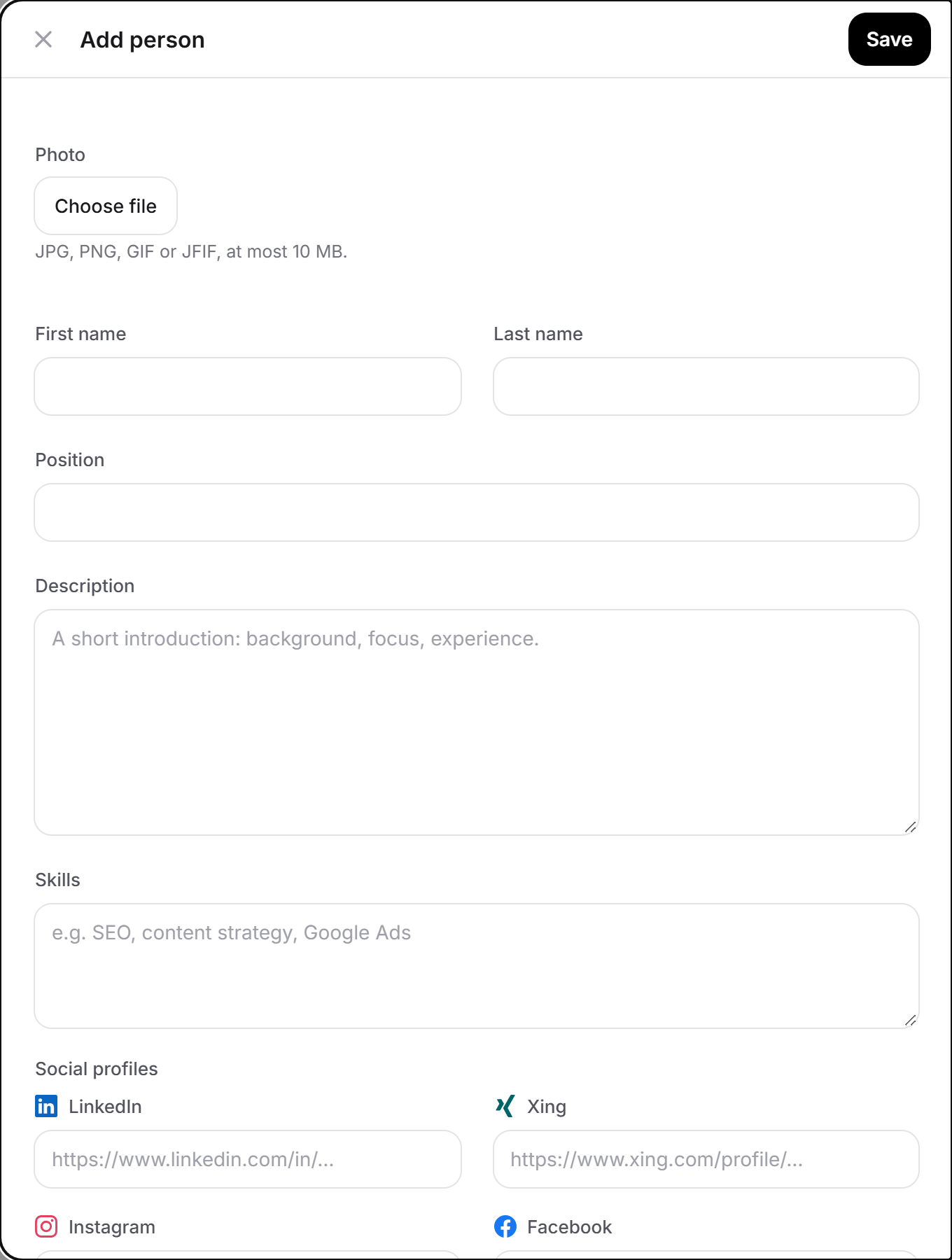
| Field | Content | Limit |
|---|---|---|
| Photo | Portrait of the person. | JPG, PNG, GIF or JFIF, at most 10 MB. |
| First name | Required. | At most 100 characters. |
| Last name | Optional. | At most 100 characters. |
| Position | For example the role in the company. Is translated. | At most 200 characters. |
| Description | Placeholder “A short introduction: background, focus, experience.” Is translated. | At most 2,000 characters. |
| Skills | Placeholder “e.g. SEO, content strategy, Google Ads”. Is translated. | At most 1,000 characters. |
| Social profiles | One address each for LinkedIn, Xing, Instagram, Facebook, X, YouTube, TikTok and website. Note: “Optional. Enter the full address of the profile.” | At most 300 characters per address. An unusable address is left out when saving. |
A person has no email address and no phone number. They also get no access to the dashboard. You handle access for further people and the contacts for leads elsewhere: Account and Contact for leads.
The limit of 10 people
Each profile can show up to 10 people, the same in all subscriptions. When there are 10, the note “Maximum reached (10)” replaces the Add person button, with the text “You can add up to 10 people. Remove one to add a new person.” If adding still succeeds, for example because you have the page open in two windows, the panel reports “The maximum of 10 people is reached. Remove a person first.”
Languages and translation
You write the team story, position, description and skills in one language. Feedbax detects the language, saves the text that way and translates it in the background into the other four profile languages. It translates again each time you save, and your own correction of a translation is overwritten in the process. Names and profile addresses are not translated. If you empty a text, only the version in the dashboard language is emptied.
Messages and special cases
| Message | Meaning and solution |
|---|---|
| Please fill in this field. | The team story or the person’s first name is missing. |
| The text is too long. | A text of the person exceeds the limit from the table. Shorten it. |
| Only JPG, JPEG, PNG, GIF and JFIF are allowed. / The file may be at most 10 MB. | The photo has the wrong format or is too large. It is not applied. |
| The file could not be stored. Please try again. | The upload failed. Nothing was saved. |
| That did not work. Please try again. | A technical error, also when sorting or deleting. Try again. |
| The data could not be loaded. Please reload the page. | The upper part or the list couldn’t be read. Both parts load separately. |
Where the details count
Profile progress: The Team area consists of two parts at 50 percent each, the team photo and the team story. So there are only the values 0, 50 and 100 percent. The people don’t count.
Automatic approval: Team photo and team story are not a requirement. What counts is explained in What your profile needs for approval.
Feedbax score
The team photo and team story have an indirect effect through profile progress: each of the two parts brings five points on the scale from 0 to 100, which goes into the delivery part of your Feedbax score. The people on the team do not affect the Feedbax score.
Frequently asked questions
Can I save just the team photo without the team story?
No. The team story is required. Without it, the photo isn’t saved either.
Why aren’t the people part of profile progress?
The list is purely an introduction of the experts. Progress counts only the team photo and team story.
We work remotely and have no shared photo. What can we use?
A montage of individual portraits works well. What matters is that real faces of your team are visible.
More than 10 people?
That isn’t possible. The limit applies in every subscription. Show the people clients get to know in the project.
Do the people have access to the dashboard?
No. Here you only create the introduction for the profile. You grant access for further people under Account.
How do I change the order of the people?
In the list, click Move up or Move down for a person. Each click swaps the person with their neighbor and saves the new order right away. No further saving is needed.
How many social media addresses can a person have?
One per platform, so up to eight: LinkedIn, Xing, Instagram, Facebook, X, YouTube, TikTok and website.