

Here you see all contact inquiries that visitors to your website left in the chat of your LeadWin agent. You find the page in the area Leads in the group LeadWin. It contains Appointments, Inquiries and Contacts. You read the message, see the conversation before it and know who you can call or write to.
At a glance
- An inquiry is created when a visitor leaves their contact details in the chat. It consists of name, email address, phone number (if given) and the message.
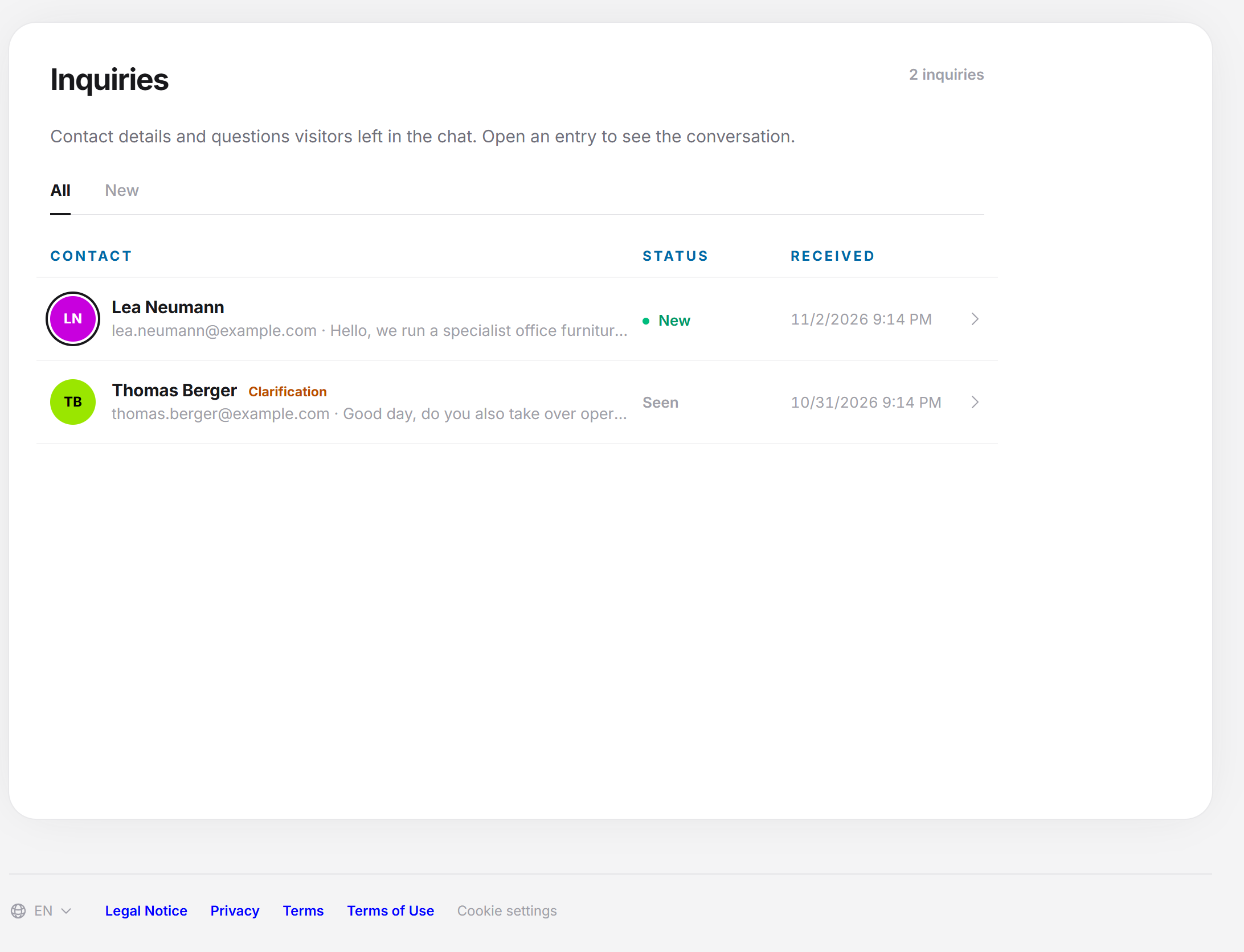
- The card shows the number at the top right (“1 inquiry”, “3 inquiries”). The text below reads: “Contact details and questions that visitors left in the chat. Open an entry to see the conversation history.”
- The newest inquiry is at the top.
- Two tabs separate All from New.
- You need a LeadWin agent that runs on your website. The page is included in every LeadWin plan.
Reading the list
The table has three columns and a track for the arrow at the end of the row:
Column | Content |
Contact | Circle with the initials, name, below it the email address and the first line of the message. Clicking the name opens the contact card (tooltip “View contact”). Clicking anywhere else on the row opens the inquiry. |
Status | “New” in green or “Seen”. For new inquiries, the circle with the initials has a ring. |
Received | Date and time at which the visitor sent the inquiry, in your local time. |
All and New
- All: every inquiry of your agent.
- New: only the inquiries that have come in since your last visit. If there are none, it says “Nothing new right now. You have seen every inquiry.”
Clarification
Some rows carry the badge Clarification. These are inquiries where the visitor asked about something that is not in your agent’s data. The LeadWin agent promised nothing about it. In the inquiry itself, a note reminds you to clarify directly with the visitor whether you offer it.
Opening an inquiry
Clicking the row opens the inquiry. The back arrow to the left of the name takes you to the list.
- Header: the name (clicking it opens the contact card), the email address as a link to your mail program, the phone number and the time of the inquiry. For a clarification, the badge is next to it.
- Message: the text the visitor left, in a gray speech bubble.
- Conversation history: the conversation the inquiry came from. The agent’s answers appear as text, the visitor’s messages in speech bubbles. If no conversation belongs to the inquiry, it says “There is no conversation history for this inquiry.”
The history is read-only. You can reply to the visitor by email or phone.
New and seen
As soon as you open the page, all inquiries so far count as seen. The status “New” and the tab New record for this visit what came in last. The next time you open the page, everything is on “Seen”.
Empty list
If there is no inquiry yet, it says “No inquiries yet. As soon as visitors leave their contact details through your LeadWin agent, they appear here.” If something is still missing with your agent, you see a status message instead, see further down.
When the view stays empty: the status messages
If the list is empty, the page checks whether your agent can collect data at all. If something is not finished, a message replaces the empty list. It names the reason and offers a button that opens the matching place in the LeadWin dashboard. The buttons open a new page, and the LeadWin dashboard reloads completely.
Message | What it means | Button |
Your LeadWin agent is ready for you | We prepared the agent with your Feedbax profile and your website. Take a look at it in the LeadWin dashboard and start it, then add it to your website. | View the agent |
Your LeadWin agent is not on your website yet | The code is not added yet. Once it runs, visitors can chat, send inquiries and book appointments. | Add the code |
Your website is not allowed yet | The code runs on an address that is not on your allow list. Add it, otherwise the chat stays blocked for visitors. | Allow the website |
Your LeadWin agent is no longer being loaded | The agent has not been loaded for more than 30 days. Check whether the code is still on your website. | Check the installation |
Your LeadWin agent is deactivated | Feedbax has deactivated the agent, so it is not answering right now. Contact us if you want it running again. | none |
Good to know: If your agent has already collected data, you see the list and not the message. The message only appears as long as the list is empty.
If the page does not load, it says “The status of your LeadWin agent could not be loaded.” Reload the page then.
If you do not have a LeadWin agent yet
Without a LeadWin agent, the Inquiries page shows the sentence “You do not have a LeadWin agent yet. It answers your website visitors’ questions and takes their inquiries for you.” Below it is a button that fits your subscription:
- Try it for free: you can still start the trial. The note below says “7 days of every feature, once and without payment details.” The button opens the LeadWin dashboard with the confirmation for the trial.
- Set up agent: the trial has already been used or your subscription includes LeadWin. The button leads to the LeadWin dashboard, where you set up the agent.
What a LeadWin agent is and how to set it up is explained in the Installation article of the LeadWin help.
Multiple LeadWin agents
If you have more than one LeadWin agent, a selection of agents appears above the view. If you pick a different one there, the page immediately shows that agent’s data. Appointments, inquiries and contacts always belong to exactly one agent, and the page does not mix them. How many agents you can create depends on your subscription, more in Multiple agents: switching and adding more.
What your subscription includes
The pages in the LeadWin area show the data of your LeadWin agents. What of that your subscription includes is decided by the LeadWin plan. A Feedbax Business subscription corresponds to the LeadWin plan Basic, Premium corresponds to Pro and Enterprise corresponds to Scale.
Feature | Free | Basic (Business) | Pro, Scale (Premium, Enterprise) | Trial (7 days) |
See inquiries | yes | yes | yes | yes |
Read conversation history | yes | yes | yes | yes |
Visit history on the contact card | no | no | yes | yes |
You find the plans and prices in Plan.
Frequently asked questions
Can I reply to an inquiry here?
No. Click the email address or call the number. The page is for reading and sorting.
How many inquiries does the page show?
All inquiries of the selected agent. The number at the top right gives the total.
Why do I also see the same person under Contacts?
Inquiries are single messages. Contacts combines everything per person: inquiries, appointments, conversations and visits.
I see nothing although visitors are writing.
An inquiry only counts once the visitor has left contact details. Plain chats without contact details are in the inbox of the LeadWin dashboard.
Related articles
- Inquiries: contact details from the chat (LeadWin help)
- Contacts
- Appointments