

Activity is the platform’s feed. It shows what providers change in their profiles and which reviews they receive, newest first. You see how active your competitors are, and you see your own changes in the same list.
At a glance
- Where: Area “Home”, entry “Activity”.
- Subscription: Available in every subscription, without restrictions.
- Read only: You can’t add or delete anything. Entries appear when providers save in their dashboard or reviews come in.
- Whose updates: The list shows the activity of all providers, including your own. Accounts of the Feedbax team don’t appear.
- Size: 50 entries per page. With “Show more” you load the next 50.
- Filter: Three tabs separate all updates, profile changes and reviews.
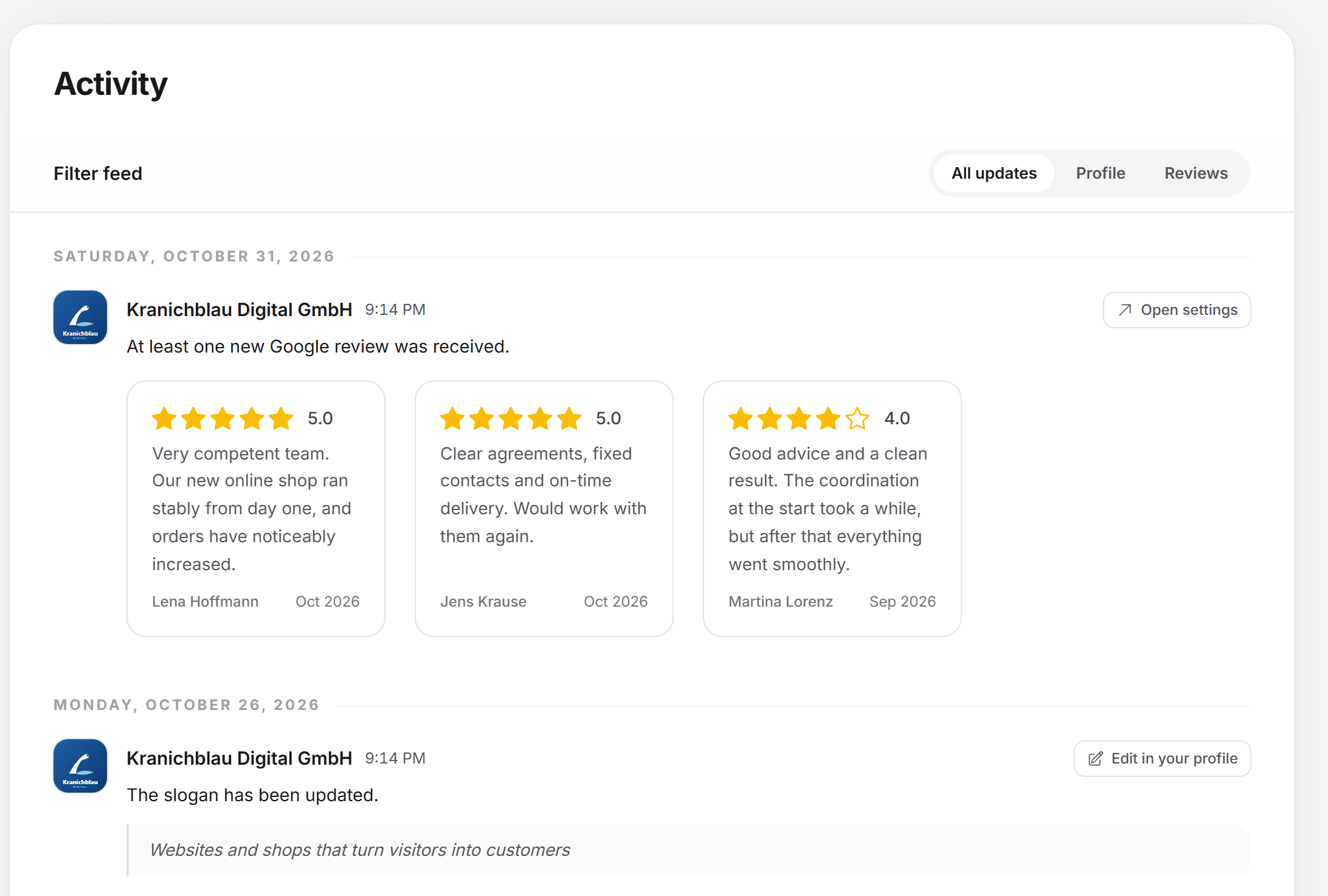
How the page is laid out
At the top is the filter bar with the heading “Filter feed” and three tabs. It stays at the top as you scroll. Below it runs a timeline. The entries are grouped by day, and each group starts with a heading: “Today”, “Yesterday” or the full date. A thin line connects the logos of the entries.
The three tabs
| Tab | What it shows |
|---|---|
| “All updates” | All entries without a filter. |
| “Profile” | Changes to profile data: company name, locations, downloads, customer names, awards, case studies, social media links, expertise, specialization, FAQ, contact details, logo, slogan, header image, hourly rate, minimum budget, company size, founding year, description, YouTube video, submitted references (collected by phone), team and comments. |
| “Reviews” | New reviews (Feedbax, Google, Trustpilot, Clutch, GoodFirms, Sortlist, ProvenExpert, Trusted Shops, DesignRush, G2), approved Feedbax reviews, and notices that a platform’s reviews were integrated or updated. |
A click on a tab reloads the list. While it loads, grey placeholders in the shape of the entries hold the space. The tabs stay locked until the new list is there.
An entry in detail
Each entry consists of these parts:
- Logo: A click opens the provider’s profile in a side view. If the provider has no logo, the first letter appears.
- Name: The name opens the profile too.
- Time: The time of the entry. If you move the mouse over it, the full date with the time appears.
- Button on the right: It takes you to the place in your own dashboard where you edit the same thing. The label names the type: “Edit in your profile” (for example slogan, logo, locations, team), “Open settings” (review sources such as Google or Clutch) or “Collect reviews” (Feedbax reviews and references). It always opens your section, not the section of the provider in the entry. On narrow screens, it shows only the icon. For entries with no counterpart in your dashboard, it is missing.
- Sentence: What has changed, for example “The slogan has been updated.” or “At least one new Google review was received.”
- Detail line: For company name, slogan, description and founding year, the current value appears below in an indented quote. If the value is empty, a hyphen appears. A description is shortened to 300 characters as plain text.
- Preview: For some types, the entry shows what it is about.
Which preview appears when
| Type of entry | Preview |
|---|---|
| New, integrated or updated reviews from a platform (Google, Trustpilot, ProvenExpert, Clutch, Sortlist, G2) | The newest reviews from that platform as a row of cards, up to 8 cards to scroll through. A click on a card opens the review in a side view. |
| Approved feedback (Feedbax review) | The provider’s newest Feedbax reviews as a row of cards, up to 8 cards to scroll through. |
| Case studies updated | Up to 8 of the provider’s case studies as a row of cards. A click opens the case study. |
| Logo updated | The new logo. |
| All other types | No preview. If there is nothing to show, the area stays empty. |
A Feedbax review that is still waiting for approval shows no preview, because it isn’t public yet.
Loading more entries
At the end of the list is “Show more”, as long as there are older entries. While the next 50 load, the button reads “Please wait”. When all entries are loaded, it disappears.
Empty list and errors
- Empty: “There is no activity here yet.”
- Error: “The feed could not be loaded. Please try again later.” In that case, select the tab again or open the page again.
How Activity helps your profile
The feed is not a tool for managing anything, but it makes upkeep visible. Every change you save in your profile and every new review appears here for all providers. A well-kept profile shows up here too. On the Overview, the block “Recently” sums up the five newest activities of other providers and leads here.
Feedbax score
Activity doesn’t affect the Feedbax score. The feed only shows changes that were already saved somewhere else. What moves the score is explained in the article What is the Feedbax score?.
Frequently asked questions
Why do I see activity from competitors?
The feed is a view of the whole platform. It shows public changes to profiles and reviews that have come in, but no private data such as clients’ contacts or credits.
Why is a change I just saved missing?
New entries appear when you reload the list. Select a tab again or open the page again. A change that wasn’t saved doesn’t appear.
Can I delete or hide an entry?
No, the list is read only.
Why does an entry show no reviews even though it mentions a new review?
For platforms, the preview shows the provider’s newest reviews. If the feed finds nothing for the platform, the area stays empty. A Feedbax review shows the preview only after it is approved.
Why is there a hyphen in the detail line?
The provider deleted the value or hasn’t entered anything in your language yet. The slogan and the description appear in the language you set in the dashboard.