

The qualification profile holds the formal details that almost every public tender asks for: references, revenue, liability insurance, certificates, self-declarations and more. You answer each question once, and your tender fit uses the answers in every tender. You see at once which requirements you meet and what is really missing, instead of clarifying the same questions again for every procurement.
At a glance
- You find the page in the dashboard under Leads > Public tenders > Qualification profile. It is open to every provider, with or without a subscription.
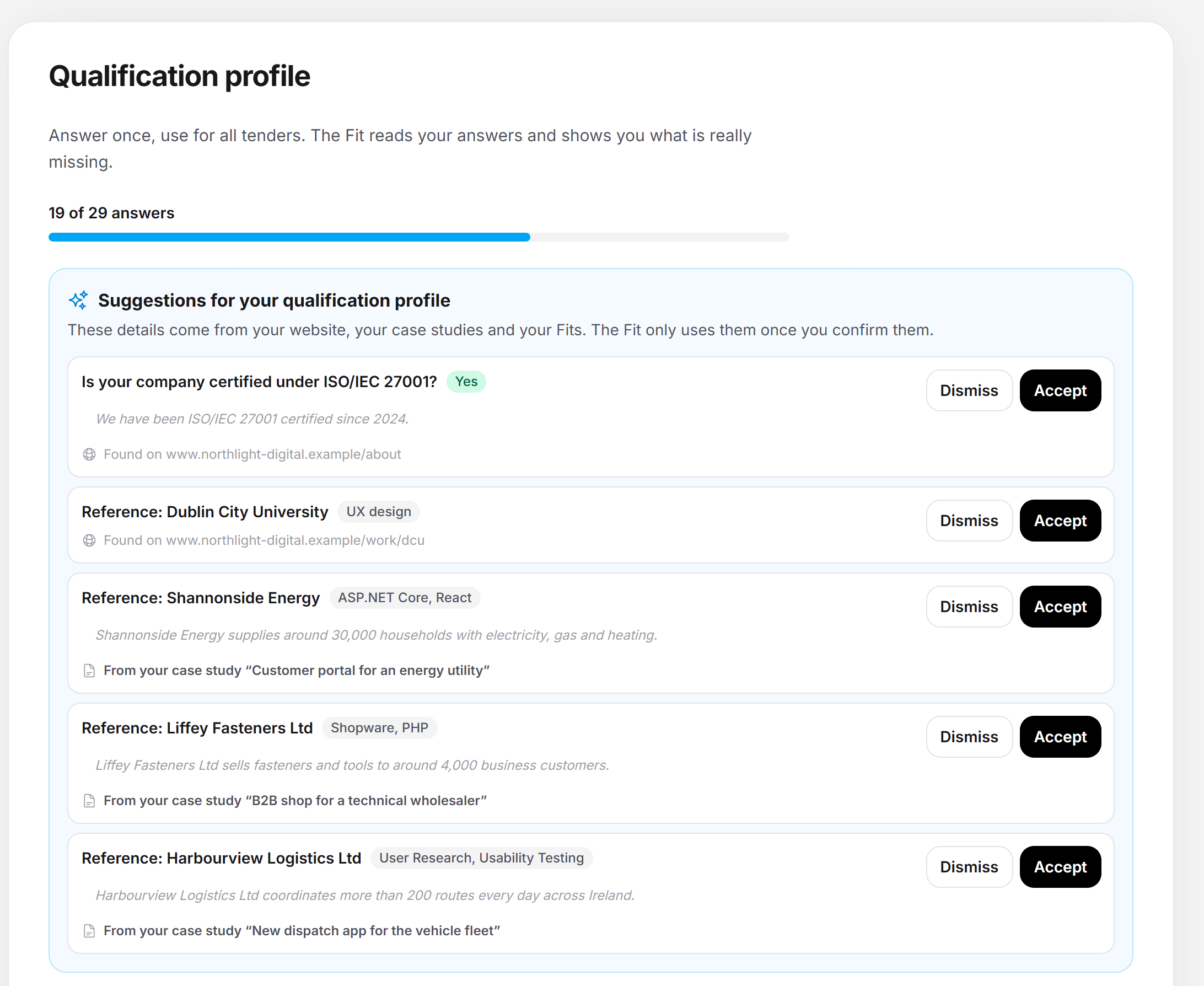
- 29 questions in eleven blocks. The line "19 of 29 answers" shows how far you are.
- Feedbax suggests answers from your website, your case studies and your fits. None of them counts before you confirm it with Accept.
- With a subscription (Tender Access or a Feedbax subscription from Business upwards), your tender fit applies the profile in every tender. Feedbax then also rereads your website every six weeks.
- For certificates you also enter the date Valid until. You do not upload evidence in the profile, the answer is enough.
- The qualification profile does not change your Feedbax score.
How it works
The qualification profile belongs to your company, not to a single person. Everyone with access to your Feedbax account sees and edits the same profile. Each answer is saved as soon as you choose it. A separate Save button exists only for the languages and for the references.
With a subscription, your tender fit uses the profile in two ways:
- Every time a fit opens: Feedbax lays your confirmed answers over the exclusion risks of the analysis. If an exclusion risk belongs to a question of your profile, your answer decides it. It then shows Visibly met or Not met, each with the badge From your qualification profile. This applies to all fits at once, without a new AI analysis and without using quota. The score and the texts of the fit stay unchanged.
- With every new analysis: For the first fit of a tender and for Recalculate fit, the AI receives your confirmed profile: all answers with their validity, plus all references with their details. It is the AI's main source for the exclusion risks.
Your profile decides a requirement by these rules:
- Yes or no: "Yes" counts as met, "No" as not met.
- Brackets (revenue, employees, coverage, years on the market, support hours): If your bracket is above the bracket of the minimum requirement, it is met. If it is below, it is not met. If it is the same bracket, the question stays open, because the threshold may lie anywhere inside that bracket. If the tender only asks for the lowest bracket, any answer is enough.
- Languages: If you selected all required languages, the requirement is met, otherwise not.
- Liability insurance: If you answer "No" to the insurance question, a required coverage amount also counts as not met.
- References: Only references whose year of completion is at most three years back count, so in 2026 from 2023 on. For references from public clients, only entries with the tick Public client count. If there are enough for the required number, the requirement is met. If not, it stays open. It never becomes "not met" this way, because whether older projects count is the client's decision.
- Unanswered or expired: A missing answer or an expired certificate stays an Open question. Whatever you have not entered is never counted as a shortcoming.
Progress and next question
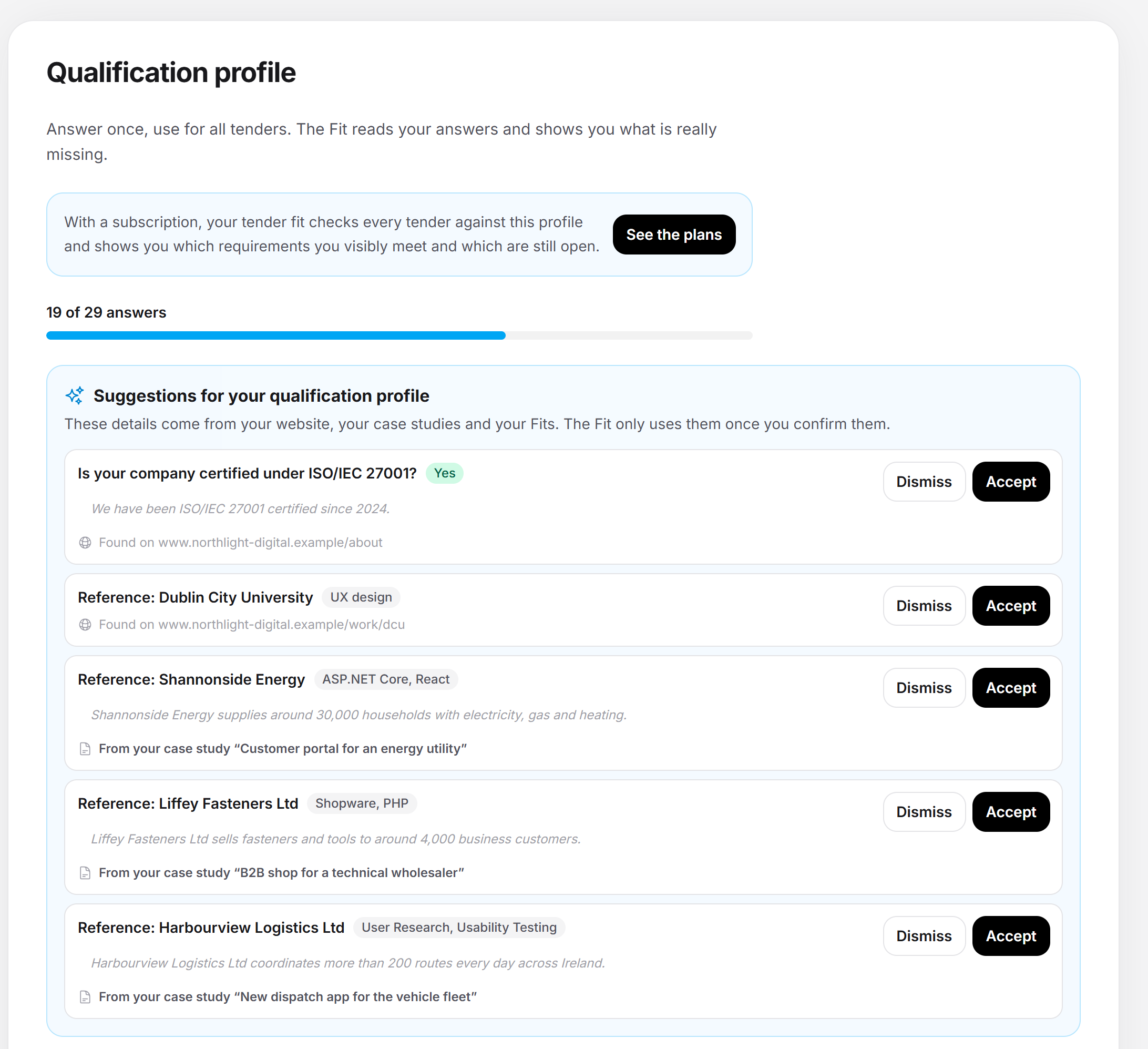
At the top of the page you see your progress, for example "19 of 29 answers", with a bar below it.
- Every answered question counts as one answer. The two reference questions count as soon as at least one reference is entered.
- An expired certificate no longer counts.
- The question about the coverage amount only appears and counts once you have answered the liability insurance question with "Yes". That is why the total reads 28 or 29.
Below it is the box Next question. It shows the open question with the biggest impact: the one that is still undecided for most of the open tenders matching your services. To the right you see how many these are, for example "Applies to 12 open tenders". If no matching tender currently asks for it, it reads "Asked in many tenders". The order then follows the share of tenders that ask for this point.
Later takes you to the next question. The button only appears when more than one question is open. When you reload the page, the order starts again at the top. The reference questions stay in the box as long as your references do not yet decide a matching tender, for example because it asks for more or more recent references. When everything is answered, it reads "All answered. Your Fit now uses your complete qualification profile."
Answering questions
- In the dashboard, open Leads > Public tenders > Qualification profile.
- Answer the question in the box Next question or scroll to its block.
- For yes/no questions, click Yes or No. For brackets, choose in the dropdown, which shows Still open beforehand. For languages, select all that apply and click Save. For self-declarations, click I can give these standard declarations.
- The answer is saved immediately. Remove answer deletes it again.
If saving fails, you see "That did not work. Please try again." The eleven blocks with their questions and answers:
- References: "Which reference projects can you name?" and "Do you have references from public clients?". You answer both through your list of references, see below.
- Languages: "In which languages can you run a project?" with German, English, French, Dutch, Spanish, Italian and Polish, several possible.
- Liability insurance: "Do you have professional or general liability insurance?" (Yes or No) and, after a "Yes", the coverage per claim: Under €1M, €1M to €3M, €3M to €5M or Over €5M.
- Self-declarations: "Can you give the usual self-declarations?". This means no grounds for exclusion under §§ 123 and 124 GWB, taxes and social contributions paid, minimum wage and collective agreements observed, no link to Russia sanctions and no insolvency proceedings. You still fill in the forms themselves for each tender.
- Team: employees (1 (just me), 2 to 9, 10 to 49, 50 to 249, 250 or more), regular freelancers, security-cleared employees under the SÜG and certified project managers, the last three with Yes or No.
- Revenue: annual revenue in the last financial year (Under €250,000, €250,000 to €1M, €1M to €5M, €5M to €20M, Over €20M) and time on the market (Under 2 years, 2 to 5 years, 5 to 10 years, Over 10 years). One bracket is enough, the exact figure stays with you.
- Registers: entry in a commercial or professional register and prequalification, for example AVPQ or PQ-VOL, both with Yes or No.
- Data protection: data processing agreement under Art. 28 GDPR, data processing exclusively within the EU, an appointed data protection officer and documented technical and organizational measures, each Yes or No.
- Service: support hours (Weekdays during business hours, Extended hours (early, late, Saturdays), Around the clock (24/7)), services on site at the client and hosting in Germany or the EU, the last two with Yes or No.
- Certificates: ISO/IEC 27001, ISO 9001, ISO 27001 based on IT-Grundschutz, BSI C5 attestation, TISAX label, ISO 14001 and ISO/IEC 20000, each Yes or No, with the field Valid until.
- Collaboration: "Do you use subcontractors when needed?" with Yes or No, plus the checkbox Open to bidding consortia.
Maintaining references
References are the most important detail: almost every tender asks for comparable projects from the last three years.
- In the block References, click Add reference.
- Enter the Client, for example "City of Springfield". It is the only required field, up to 200 characters.
- Tick Public client if the client is a public body, such as a municipality, a federal state or a university.
- Choose the Contract value: Under €50,000, €50,000 to €250,000, €250,000 to €1M, Over €1M or Not specified.
- Enter the Year of completion (1980 to 2100) and the Duration in months (1 to 240). If the project is still running, use the year it started.
- If you like, add Field of service (up to 200 characters), Short description (up to 2,000 characters) and Link to the project (optional).
- Click Save. Cancel closes the form without changes.
If the client is missing, you see "Please enter the client." If the year or duration is out of range, you see "Please check the year and duration."
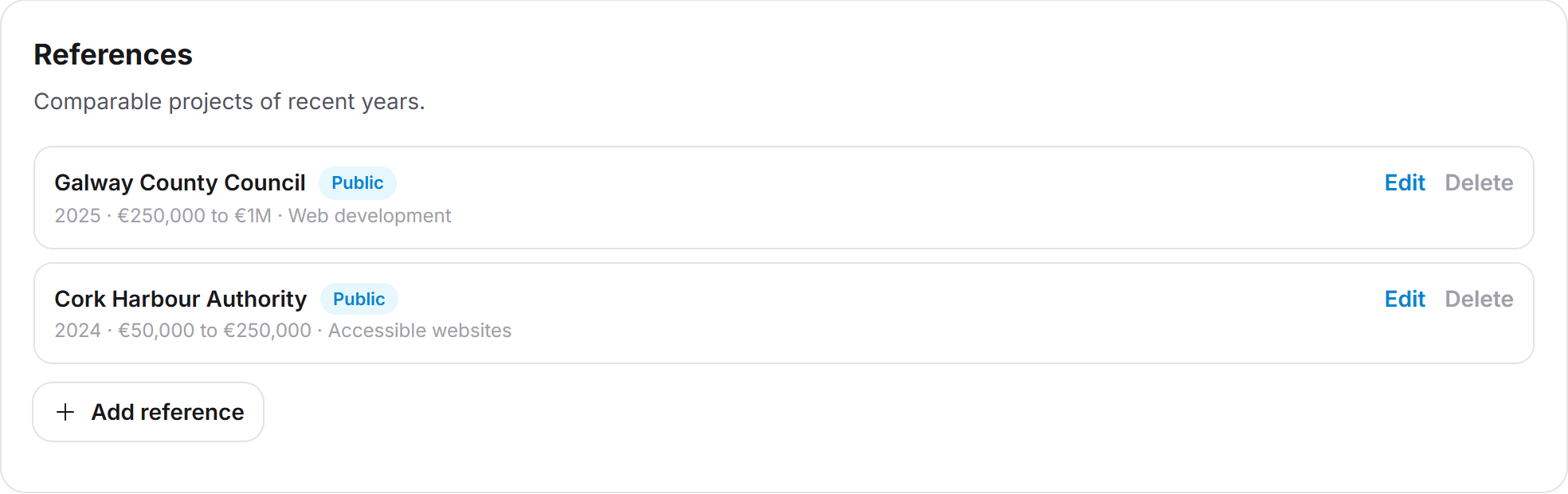
Each reference then shows as a row with the client, the badge Public (if set) and a short line with year, contract value and field of service. Edit opens the form again. Delete asks "Delete this reference?" and removes the entry for good once you confirm with Delete.
Tip: Always enter the year. Without a year, the fit cannot recognize a reference as recent, and it decides no requirement. The references here are separate from the case studies of your Feedbax profile. Feedbax does suggest your case studies as references, though, see below.
Certificate validity
For the seven certificates, the profile also asks after a "Yes" until when the certificate is valid. You do not upload evidence here: the answer is your own statement, and the fit uses it as it is.
- Answer Yes. The field Valid until appears below.
- Enter the date until which the certificate is valid. It is saved right away.
If the date Valid until is in the past, the answer shows "Expired on …". The certificate then counts neither in the progress nor in the fit, where it shows Open question again. Enter the new date as soon as you have renewed the certificate.
Accepting or dismissing suggestions
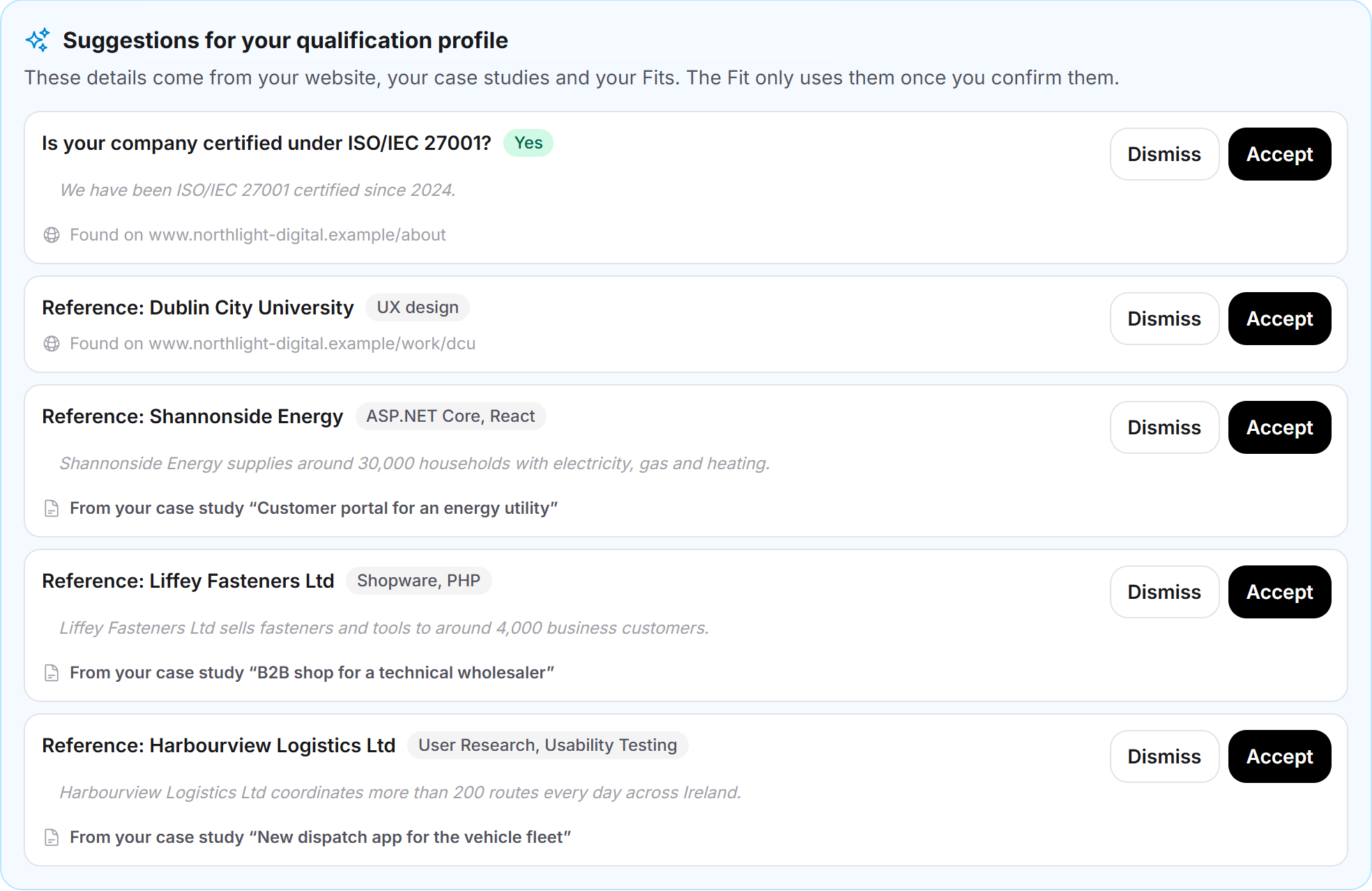
When suggestions are waiting, the box Suggestions for your qualification profile appears below the progress. Each card shows the question or reference, the proposed value, often a quote from the source and the source itself. There are three sources:
- Your website: answers and references Feedbax finds when reading your website, with "Found on …" and the address of the page. A suggestion only appears if its quote stands word for word on that page. Each run yields at most 30 answers and 20 references. The website never suggests the self-declarations, because only your company itself can give them.
- Your case studies: every case study of your Feedbax profile with a client name and a public address becomes a reference suggestion, with "From your case study “…”" as a link. Feedbax takes over the client, the year (the end, or the start for running projects), the ticked focus areas as field of service and the first 300 characters of the description. Contract value and duration stay empty, and the tick Public client is off. Add them after accepting via Edit.
- Your fits: If you set an exclusion risk to Visibly met or Not met yourself in a fit and it belongs to a yes/no question, Feedbax suggests "Yes" or "No", with "From your Fit for “…”" as a link. If you decided the same question differently in two tenders, no suggestion is made.
- Check the value, quote and source.
- Click Accept. The answer is then in the profile, with the badge Taken from your website or Taken from one of your Fits. A reference appears in the list.
- If the suggestion does not fit, click Dismiss.
A suggestion may concern a question you have already answered. Accept then replaces your previous answer. A dismissed suggestion disappears, and Feedbax does not suggest it again: neither the same answer to the same question nor a reference with the same client. The fit only uses confirmed details, pending suggestions count nowhere.
Feedbax checks case studies and fits when you first open the page and then every time it reads your website. A new case study therefore shows up as a suggestion after the next run, for example after Read website again.
Having your website read
Feedbax reads the website from the company data of your profile and looks for answers and references there. This happens:
- on your first visit to the Qualification profile page, with or without a subscription,
- when the dialog Get your qualification profile ready opens after booking,
- every time you click Read website again,
- with a subscription, also automatically six weeks after the last read. Feedbax checks every six hours which websites are due. Without a subscription there is no regular reread.
Feedbax reads the home page and up to nine subpages, at most ten pages per run: one page with references, up to two pages with services, and one page each for about us, certificates, legal notice, privacy, careers, and contact and locations. Feedbax takes the pages from your website's sitemap, or for a LeadWin agent from its page overview. If it finds none, it tries common addresses such as /references, /services or /imprint, at most 16 addresses per run. Per page Feedbax reads up to 12,000 characters, up to 60,000 in total.
While reading, it says "We are reading your website right now. Suggestions will appear here in one to two minutes." The page refreshes by itself. Afterwards it says, for example, "Website read on 11/16/2026: home page and 4 subpages". A click on the number unfolds the list of pages read, each with its path and kind of page. If Feedbax found only the home page, it says "home page only" with the note that a sitemap (sitemap.xml) leads to more suggestions.
Read website again starts a new run immediately, with or without a subscription and without a daily limit. The button is only missing while a run is going on. Without a website it says "No website is saved in your profile. Add it to your profile and we will read it for suggestions." Once you have added it, Read website again reads it right away. If reading fails, it says "Your website could not be read just now. Try again with 'Read website again'." Feedbax only retries automatically with a subscription, at the next regular run.
Open to bidding consortia
In the block Collaboration there is the checkbox Open to bidding consortia. It is ticked from the start. Other providers can then see you in the block Possible partners of a tender and send you a request for a bidding consortium by email. How the block works is described in Possible partners for bidding consortia. Your answers help here: if you meet a requirement the searching provider lacks, Feedbax suggests you further up.
If you switch it off, you no longer appear as a possible partner. You can also switch it off without logging in via the link in every request email.
In the tender fit
In the fit drawer you see your qualification profile at the exclusion risks:
- If your profile decided a requirement, it carries the badge From your qualification profile and the link Change in qualification profile. The link opens this page. Such a point has no status selection and no evidence upload, because you change it only in the profile.
- If a point shows Open question and belongs to a question of your profile, the question appears right below it, with the note "Answer once, applies to all tenders." Your answer goes into the qualification profile and applies to all fits at once, without a new AI analysis.
- If you changed an answer or a reference after a fit was created, the fit shows the note "You updated your qualification profile after this fit" at the top. Below it, it says that the exclusion risks already reflect the change, but the score and the assessment date from the day of the fit. Recalculate fit at the top right recalculates both with your current profile. Accepted suggestions count as your change. Reading the website alone, removing an answer and deleting a reference do not trigger the note.
How to work through open points and exclusion risks in detail is covered in Working through open points and exclusion risks. The best order for maintaining profile and fit is explained in Improving your tender fit.
After booking: Get your qualification profile ready
When you book Tender Access, the dialog Get your qualification profile ready opens after you close the booking dialog. If you had to confirm the payment with your bank, for example with 3-D Secure, it opens after you return to the Public tenders page. It does not appear when you book a Feedbax subscription from Business upwards. You then reach your profile directly through the menu.
- The dialog asks you up to five questions one after the other, the most important first, with the line "Question 1 of 5".
- Answer the question. The answer is saved immediately.
- Click Next, and Done on the last question. Later skips a question.
- In parallel Feedbax reads your website ("In parallel, we read your website and suggest answers."). Suggestions already appear in the dialog and can be accepted there.
- Go to qualification profile opens the full page.
If you close the dialog early, nothing is lost. All questions remain on the Qualification profile page.
What your subscription includes
Feature | Without subscription | Tender Access or Feedbax subscription from Business |
Qualification profile page, questions, references, evidence | yes | yes |
Suggestions from website, case studies and fits | yes | yes |
Website read on first visit and Read website again | yes | yes |
Automatic website reread every six weeks | no | yes |
Profile applied in every tender fit | no | yes |
Open to bidding consortia | yes | yes |
Without a subscription, the page shows the note "With a subscription, your tender fit checks every tender against this profile and shows you which requirements you visibly meet and which are still open." The button See the plans opens Plan & account > Plan in the dashboard with the plan cards. You book there without leaving the dashboard.
The benefit: a profile you already filled in without a subscription works in every fit from the first day of the subscription. The pricing overview lists this as "Qualification profile applied to every tender fit", the Tender Access card as "Qualification profile built into every fit". A tender you unlocked with the trial access gets a full fit, and that fit reads your profile too. What else works without a subscription is covered in What the free access includes, the subscriptions compared in What subscriptions does Feedbax offer?.
Feedbax score
The qualification profile does not change your Feedbax score and has no effect on your ranking in the directories. The answers do not appear on your public Feedbax profile either. Case studies are different: they count toward the score, and Feedbax suggests them here as references. Maintaining them in the portfolio pays off twice.
Frequently asked questions
Do I need a subscription to fill in the qualification profile?
No. The page, questions, references, suggestions and the website read are open to every provider. Only the subscription applies the profile in every tender fit and rereads your website regularly.
Does an answer change my score?
Not right away. An answer decides the matching exclusion risks in all fits, and the score stays as it is. Only with Recalculate fit does the AI read your current profile and assess again. The basics are in The tender fit: how your score is built.
Why does it still say "Open question" even though I answered?
Usually for one of these reasons: your bracket is the same as the required one, your references are older than three years or have no year, there are fewer references than required, the certificate has expired, or the requirement belongs to no question of the profile. In the last case you set the status yourself in the fit drawer.
How often does Feedbax read my website?
On your first visit to the page, after booking Tender Access and every time you click Read website again. With a subscription, also automatically every six weeks.
I added my website only later. How do I get it read?
If no website was saved on your first visit, the page shows the note about the missing website. Add the website to your profile and then click Read website again. Feedbax reads it right away, with or without a subscription. Otherwise, with a subscription, Feedbax reads it at the next regular run, about six weeks after the first attempt.
What happens to a dismissed suggestion?
It disappears and does not come back, not even after the next website read. If you want the detail after all, enter it yourself.
Does the contracting authority see my details?
No. Feedbax sends nothing to contracting authorities. The profile is your working basis; you submit the forms and evidence yourself for each tender on the procurement platform.
Does the profile apply to my whole team?
Yes. It belongs to the company. Everyone with access to your account works with the same profile, and every change applies to all.